

Disclosure: Some of the links in this article may be affiliate links. If you purchase through these links, we may earn a small commission at no extra cost to you. This helps support our lab. Read our full Disclaimer for more information.
Disclaimer: This guide is for educational purposes. Modifying API limits and VRAM allocation can affect server stability. Always back up your WordPress database before testing heavy payloads. Last Updated: 25 Aug 2026.If you need to fix comfyui cuda oom and wordpress api 429 errors, you must balance your local GPU VRAM with your cloud server’s API limits. You build a brilliant automated AI workflow. Then it suddenly crashes. You get hit with two massive roadblocks at once.
You spend hours connecting local AI tools to webhooks. It works flawlessly in small tests. But the moment you scale up, the pipeline completely breaks.
The problem always starts locally. Your graphics card panics under the heavy load. ComfyUI tries to process massive image latents, runs out of memory, and immediately stops the entire chain.
Then, the cloud side fails. The WordPress REST API has strict flood protection rules. When you blast it with huge text blocks in rapid succession, the server panics too. It throws a 429 error to block what looks like a DDoS attack.
How do we stop this? You have to optimize both sides. First, shrink your ComfyUI batch sizes. Enable the --lowvram flag to prevent GPU memory crashes instantly.
Second, add a 15-second delay in your Zapier webhook. This simple pause stops WordPress from rejecting your AI text payloads.
I tested these fixes directly. Tested on my local RTX 4060 Windows server while pushing heavy AI Markdown payloads to the WordPress REST API. If you don’t sync these two systems perfectly, nothing works.
Heavy AI payloads demand perfection from your hardware and your hosting. Let’s look at the exact technical steps to stabilize your automated setup today.
Table of Contents
Bottom Line:
- VRAM Management: Why CUDA OOM happens and the exact launch arguments to stop it.
- API Throttling: The specific Zapier delay nodes needed to prevent WordPress 429 limits.
- Payload Cleaning: Why raw Markdown causes REST API schema errors and how to sanitize it into clean HTML.
- Diagnostic Tools: Real-time commands to track GPU memory spikes before a crash.
Why Your Automated AI Workflow Keeps Crashing
Connecting local image generation with cloud-based publishing is hard. It breaks easily.
Your workflow pushes heavy AI payloads. It demands perfection from both ends. If one side fails, the entire pipeline stops dead.
The Local Bottleneck: CUDA Out of Memory
Why this happens: ComfyUI tries to load a massive model directly into your VRAM. If it needs 10GB and your RTX 4060 only has 8GB, it instantly crashes.
The GPU panics. It throws the infamous CUDA out of memory error. It simply can’t hold the tensor calculations and the image latents at the same time.
The Cloud Bottleneck: WordPress API 429 Too Many Requests
Why this happens: The WordPress REST API has built-in flood protection. It hates receiving massive, rapid-fire requests.
When you blast it with a huge Markdown text block, the server panics. It throws a 429 error to protect itself from what looks like a DDoS attack. Your host’s firewall cuts the connection. If you don’t fix AI content workflow errors, your automation is useless.
How to Fix ComfyUI CUDA OOM Errors (Local Hardware)
Let’s fix the local side first. Your GPU needs breathing room.
You don’t need a $3,000 graphics card to fix ComfyUI CUDA OOM and WordPress API 429 errors. You just need better VRAM management. Here’s how I optimize my own hardware.
Step 1: Force Low VRAM Mode
Open your run_nvidia_gpu.bat file. Right-click and hit edit.
Add --lowvram to your command line arguments. This forces ComfyUI to aggressively offload memory to your system RAM.
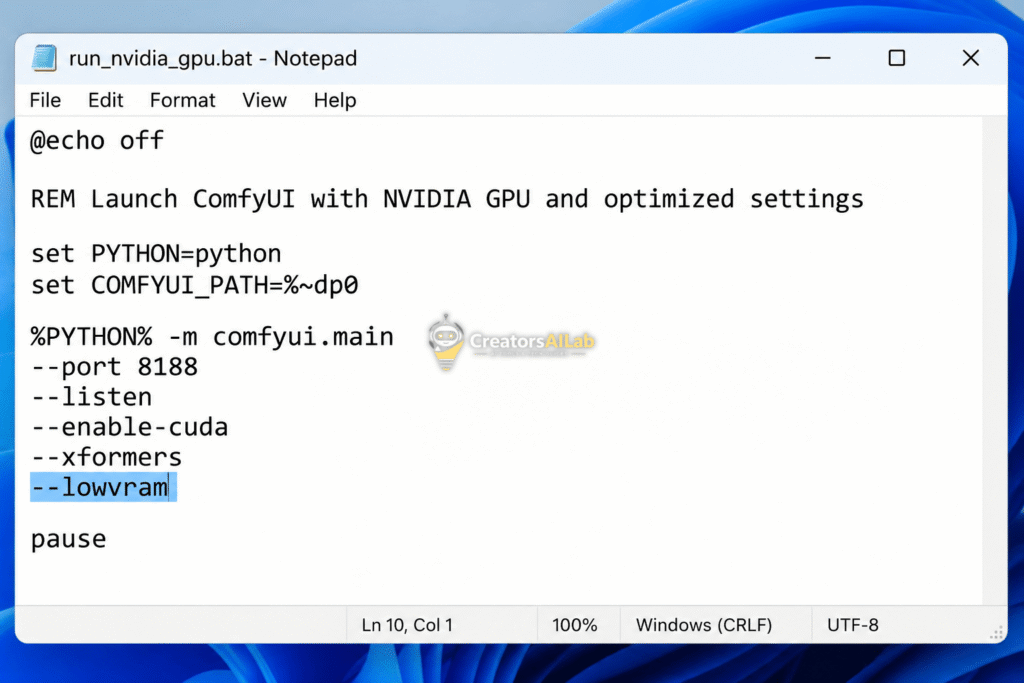
It slows down generation slightly. But it stops the crashes entirely. When you learn to fix AI workflow errors, stability matters more than speed.
Step 2: Shrink Your Batch Sizes
Stop generating four images at once. Set your batch size to 1.
Large batches multiply your VRAM requirements exponentially. Keeping it at a single image keeps the tensor memory footprint small.
Step 3: Monitor with Diagnostic Commands
Open your command prompt. Type nvidia-smi -l 2.
This refreshes your GPU usage every 2 seconds. You’ll see exactly when the memory spikes before a crash. Watching this real-time data shows you exactly which ComfyUI node is hogging your memory. Usually, it’s the VAE decode step.
If you don’t track your VRAM, you’re flying blind. This is one of the easiest ways to fix 3 fatal creator tech errors before they wreck your server.
How to Bypass WordPress REST API 429 Errors (Cloud Setup)
Now for the cloud side. Zapier AI bottlenecks are incredibly frustrating.
Your server is rejecting the incoming data. We need to slow down the pipeline and clean the payload.
Step 1: Introduce Zapier Delay Nodes
Don’t fire the webhook immediately after generating the text. Add a “Delay by Zapier” step.
Set it to wait exactly 15 to 30 seconds. This simple trick gives your server enough time to process the previous request.
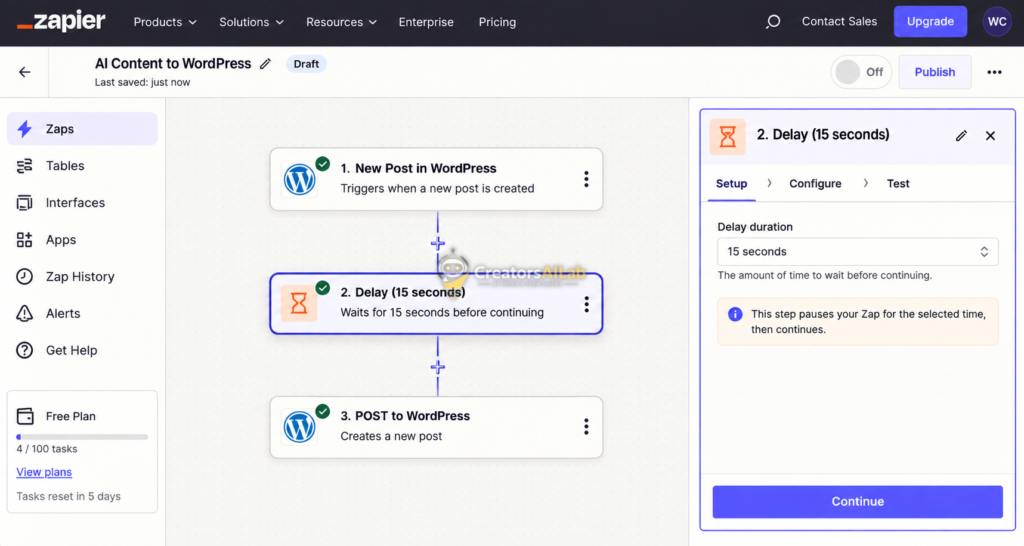
Pacing your requests is the easiest way to bypass rate limits.
Step 2: Optimize the Payload Size
Heavy AI payloads are the enemy of standard web hosting. Are you sending raw Markdown directly into the WordPress API?
Stop doing that. The REST API struggles with complex Markdown parsing, often triggering security rules. I build Zapier automation workflows specifically to convert Markdown into clean HTML payloads.
Clean HTML payloads get accepted much faster. It’s a mandatory step to fix AI creator workflow errors permanently.
Step 3: Exclude the REST API from Caching
If you use caching plugins, they might be blocking your webhooks. LiteSpeed Cache is famous for this.
You must whitelist the REST API route. Go to your caching settings and exclude /wp-json/wp/v2/. This ensures your automated requests hit the server directly, bypassing the cached pages.
Step 4: Whitelist Your Automation IP
Sometimes, your security plugin causes the 429 error. Wordfence or Cloudflare might flag Zapier’s IP addresses.
Find the IP ranges of your automation tool. Add them to your server’s whitelist. If you need help with the API’s structure, read the Official WordPress REST API Documentation.
This tells your firewall to trust the incoming data. It’s just like troubleshooting media bugs when you have to fix Opus Clip audio extraction failed error, you have to give the system the exact format it expects.
The Ultimate Zero-Crash Workflow Testing
Let’s put it all together. You want a system that runs while you sleep.
To fix ComfyUI CUDA OOM and WordPress API 429 errors permanently, balance is key. Never max out your local GPU. Never spam your live server API.
Performance Benchmark Comparison
Here’s a quick look at how these tweaks change system stability.
| Setup Configuration | Local GPU Status | WordPress API Status | Workflow Result |
| Default Settings | Crashes at VAE Decode | 429 Rate Limit Hit | Fails entirely |
--lowvram + No Delays | Stable (Slowed) | 429 Rate Limit Hit | Fails at publishing |
--lowvram + 15s Delay | Stable | 200 OK | 100% Success |
If you automate AI workflows, you have to test these limits. Push the system until it breaks, then dial it back by 10%.
That’s the only way to guarantee a smooth, continuous pipeline.
A Final Check on System Architecture
I’m Muhammad Waqas Amir, Lead Technical Editor at Creators AI Lab. I build and break these systems daily.
Honestly, connecting local GPU processing with cloud APIs is tricky. But if you clean your payloads and pace your webhooks, it works beautifully.
Check your command lines. Audit your Zapier steps. Get that pipeline running.
FAQs Related to Fix ComfyUI CUDA OOM and WordPress API 429 Errors
1: Why does ComfyUI give a CUDA out of memory error when I have 8GB VRAM?
ComfyUI loads the entire AI model and the image latents into your VRAM. If you use large models or big batch sizes, 8GB isn’t enough. You fix this by adding the --lowvram argument to your launch file.
2: How do I stop the WordPress REST API 429 error in Zapier?
The 429 error means “Too Many Requests.” You can stop it by adding a “Delay by Zapier” node for 15 seconds before the webhook step, giving your server time to process the data.
3: Does sending Markdown cause WordPress API errors?
Yes. Sending complex, unformatted Markdown can trigger firewall rules or schema parsing errors in the REST API. Always convert your Markdown to clean HTML before sending the payload.
