

Disclosure: Some of the links in this article may be affiliate links. If you purchase through these links, we may earn a small commission at no extra cost to you. This helps support our lab. Read our full Disclaimer for more information.
Disclaimer: This guide is for educational purposes. Technical setups and software interfaces vary by hardware and updates. Always backup your WordPress database before modifying SEO schema. Last Updated: August 18, 2026.If you’re building a fully automated content machine in 2026, you already know the pain. You export a perfect script, run it through your software stack, and suddenly everything breaks. I had to fix AI content workflow errors that were silently destroying my production timeline.
It’s incredibly frustrating. You get metallic audio, weird video import glitches, or Google Search Console suddenly screams about broken code. You assume the AI is just acting up.
But here’s the thing. The AI isn’t broken; your pipeline is. After weeks of brutal testing, I found the root technical causes. Let’s look at exactly how to patch these leaks.
Quick Summary
- Audio Bug: ElevenLabs sounds robotic because of sample rate mismatches. Resample your clones to 48kHz.
- Video Bug: HeyGen and Opus Clip use Variable Frame Rate (VFR). Convert them to CFR to stop editor crashes.
- SEO Bug: Copy-pasting AI text injects hidden HTML, which shatters WordPress schema structure.
Table of Contents
The AI Diagnostic Benchmark (Quick Fix Table)
Before we look at the step-by-step methods, here is a quick diagnostic map. Use this table to identify exactly what part of your stack is failing.
| AI Tool Failing | Symptom (The Bug) | Technical Root Cause | The Workflow Fix |
| ElevenLabs | Robotic output & background hiss | 44.1kHz vs 48kHz audio mismatch | Audacity 48000 Hz Resampling |
| HeyGen / Opus | “Unsupported Format” / Audio drift | Variable Frame Rate (VFR) encoding | Handbrake CFR H.264 Remux |
| Rank Math WP | Missing mainEntity FAQ Schema | Hidden Markdown/HTML in AI text | Plain-text paste & block refresh |
Why Chaining AI Tools Breaks Your Publishing Pipeline
We all want a seamless process. You generate a script in ChatGPT, push it to ElevenLabs for voice, map it to a HeyGen avatar, and auto-publish to WordPress. It sounds easy on paper.
The reality is a technical nightmare. These platforms don’t speak the same default languages. They use different codecs, varying bitrates, and conflicting text encoding formats.
When you shove a raw AI file directly into another AI tool, you force the system to guess the formatting. That guesswork is exactly what causes the silent bugs ruining your final output. If you want to see how these issues stack up over time, check out my broader guide on how to fix AI workflow errors.
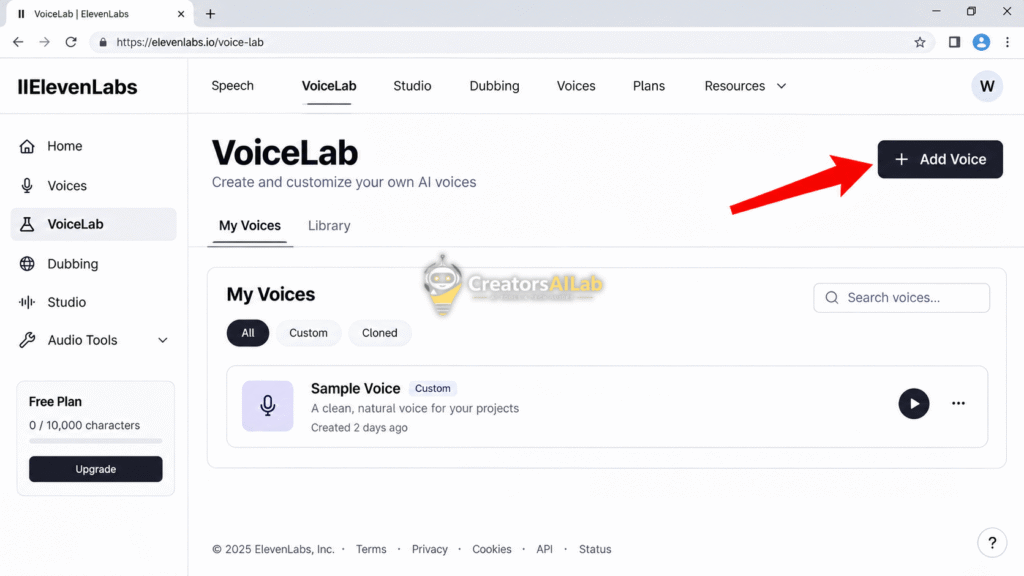
Bug #1: The ElevenLabs Robotic Voice & Hissing Issue
You cloned your voice, typed in your script, and hit generate. But instead of sounding like a human, the output sounds like a tin can with a heavy background hiss.
Why This Happens
When you clone a voice, the AI expects a pristine audio file. Most creators upload compressed MP3s or phone recordings that run at weird sample rates like 44.1kHz or even 32kHz.
ElevenLabs tries to artificially upscale this low-quality audio to its native generation standards. That aggressive upscaling creates digital artifacts. This is what causes the robotic hiss.
The Fix (Audacity Resampling)
To apply a permanent elevenlabs robotic voice fix, you need to clean your source file before cloning. We do this using Audacity.
- Open your raw voice recording in Audacity.
- Look at the bottom left corner for the “Project Rate (Hz)” dropdown menu.
- Change it from 44.1kHz to 48000 Hz.
- Export the file as a clean WAV (not MP3).
Upload this 48kHz WAV file to ElevenLabs. Your next generation will sound flawlessly human.
Bug #2: HeyGen & Opus Clip “Unsupported Format” in CapCut
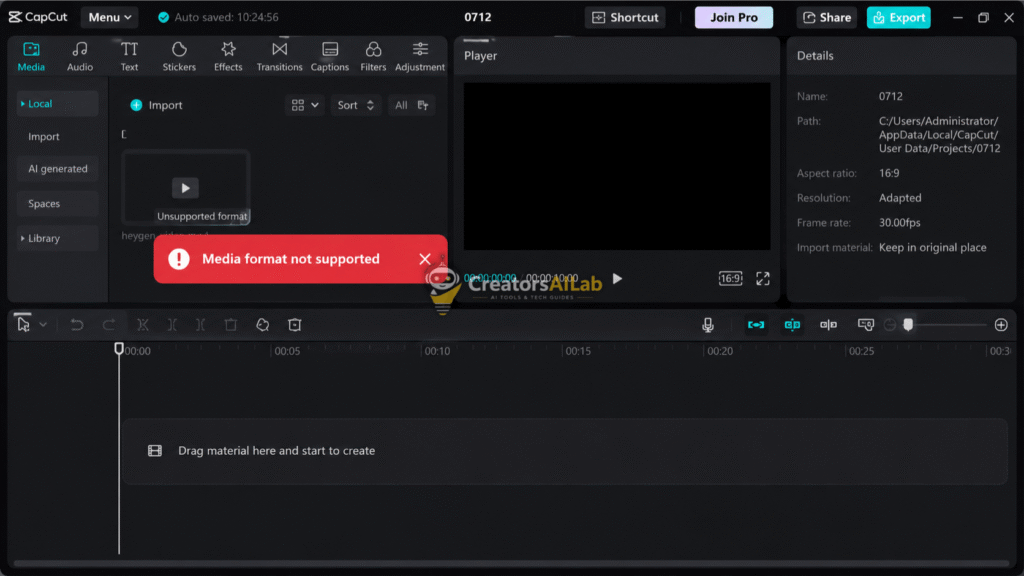
You just downloaded a crisp video from HeyGen or pulled a viral short from Opus Clip. You drag it into CapCut PC or Premiere Pro, and nothing happens. You either get a black screen, an “unsupported format” error, or the audio completely drifts out of sync.
Why This Happens
Browser-based AI video generators are built for cloud speed, not desktop editor compatibility. To save bandwidth, tools like HeyGen and Opus Clip render videos using a Variable Frame Rate (VFR).
Desktop video editors absolutely hate VFR. They are hard-coded to work with a Constant Frame Rate (CFR). When CapCut tries to process a VFR file, it panics. The decoding engine fails, causing the heygen unsupported format capcut error.
The Fix (Handbrake Remuxing)
You need to force the video into a standard editing format. This requires a quick handbrake VFR to CFR conversion.
- Download and open Handbrake.
- Drop your AI-generated video into the app.
- Go to the Video tab.
- Select your encoder. I use
H.264 (NVENC)to leverage my graphics card for instant rendering. - Click the radio button that says Constant Framerate.
Hit encode. The new file will drop right into your CapCut timeline smoothly, and your audio will never drift again. For deeper technical specs, you can reference the official Handbrake documentation on framerates.
Bug #3: Rank Math “Missing mainEntity” FAQ Schema Error
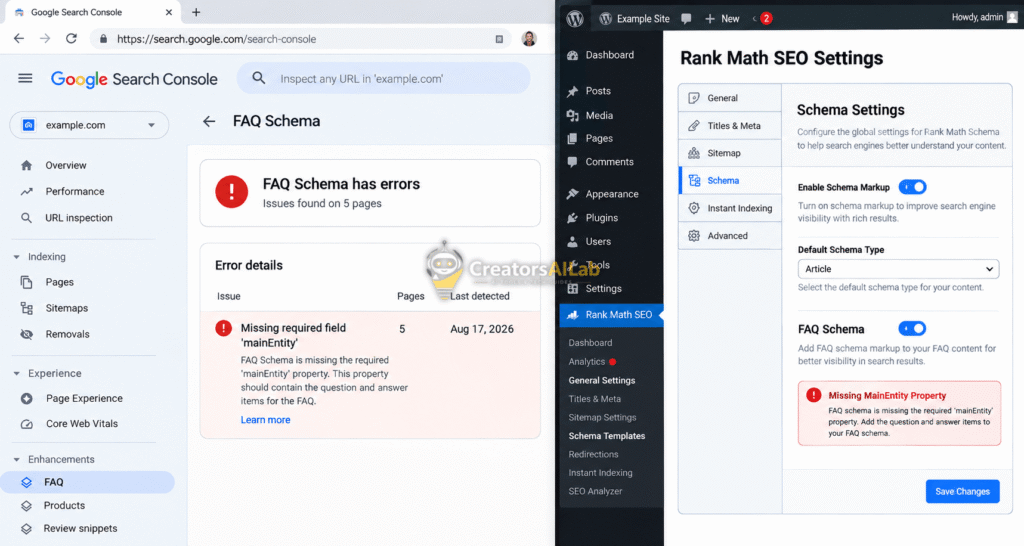
Your AI automation is finally working. You generate an FAQ section, paste it into WordPress, and hit publish. A week later, Google Search Console throws a massive warning: “Unparseable structured data” or “Missing field mainEntity”.
Why This Happens
When you copy text from ChatGPT or Zapier and paste it into the Gutenberg editor, you aren’t just pasting words. You are dragging over hidden, broken HTML tags and markdown artifacts.
If you use a GeneratePress theme alongside Rank Math Pro, the SEO plugin tries to wrap this broken text into an FAQ JSON-LD schema payload. The hidden AI formatting shatters the code structure. Google bots see this broken code and flag the page.
The Fix (HTML Sanitization)
You must strip the AI formatting before it hits your SEO plugin. This is the only reliable rank math missing mainentity schema fix.
- Never paste directly into the visual editor. Always paste into a plain text editor first (like Notepad), then copy it again.
- In WordPress, delete the buggy FAQ block completely.
- Add a fresh Rank Math FAQ block.
- Paste your sanitized, plain text into the fields.
Update the post and hit “Validate Fix” in Google Search Console. It works every time. These exact formatting glitches are often part of a bigger problem, which I cover thoroughly in my breakdown of the 3 fatal creator tech errors.
My Diagnostic Hardware & Testing Methodology
I don’t just guess at these solutions. I actively try to break my tech stack to find the limits of these AI tools.
To properly fix AI content workflow errors, I run a dual-testing environment. I benchmark heavy local encoding tasks on my RTX 4060 Windows machine to test desktop limits. Then, I push the exact same files to my iPhone 16 Pro Max to see how mobile operating systems handle the codecs.
Interestingly, iOS often auto-corrects VFR video issues natively. Windows desktop editors do not. This is why testing on multiple devices is the only way to find the real root cause of a bug.
Final Thoughts on AI Workflows
AI is powerful, but it’s not magic. It’s just a lot of messy code layered on top of older web standards.
If you take the time to understand the tech beneath the hood—like sample rates, frame rates, and schema JSON—you become bulletproof. You stop relying on luck and start engineering a reliable pipeline.
I’m Muhammad Waqas Amir, founder and Lead Technical Editor at Creators AI Lab. If this troubleshooting guide saved your workflow today, bookmark the site. We figure out the hard stuff so you don’t have to.
FAQs Related to Fix AI Content Workflow Errors
1: Why does my AI-generated video have audio out of sync in CapCut?
This happens because AI tools export video using a Variable Frame Rate (VFR). Video editors require a Constant Frame Rate (CFR). Converting the video to CFR using Handbrake will fix the syncing issue.
2: How do I fix the ElevenLabs hissing sound in my voice clones?
The background hiss is caused by upscaling low-quality source audio. To fix it, run your original voice sample through Audacity, change the project sample rate to exactly 48000 Hz, and re-upload the clean WAV file to ElevenLabs.
3: Why is Rank Math showing a schema error on my AI blog posts?
AI chatbots include invisible HTML formatting in their text outputs. When pasted into WordPress, this hidden code breaks the JSON-LD structure of Rank Math’s schema blocks. Always paste text without formatting to prevent this.
