Disclosure: Some of the links in this article may be affiliate links. If you purchase through these links, we may earn a small commission at no extra cost to you. This helps support our lab. Read our full Disclaimer for more information.
Disclaimer: This guide is for educational purposes. Always back up your project files before modifying export settings or running third-party media conversion tools. Last Updated: July 23, 2026.Your timeline is broken. You need to fix AI creator workflow errors right now, not read another fluff piece about how great artificial intelligence is. Deadlines don’t care about software bugs.
When your CapCut audio drifts, your ElevenLabs API times out, or Midjourney throws syntax flags, production stops dead. It’s incredibly frustrating. We are going to fix the exact mechanical failures causing these issues today.
Stop searching through vague forum threads. Here are the exact, data-driven solutions to get your workflow running again.
Key Takeaways
- CapCut Audio Fix: Convert all AI-generated video from Variable Frame Rate (VFR) to Constant Frame Rate (CFR) before importing.
- ElevenLabs Stability: Adjust WebSocket chunking to resolve API latency and timeout errors.
- Midjourney Syntax: Remove double spaces and unsupported tags to clear Web UI invalid parameter flags.
Table of Contents
Why Your AI Workflow Keeps Breaking
The tools update faster than the documentation. That is the hard truth. You are constantly dealing with mismatched file formats and strict server rules.
While processing our recent batch of AI videos for creatorsailab.com, our team ran into these exact bugs. We rigorously tested these fixes throughout July 2026 to ensure they work.
To fix ai creator workflow errors permanently, you have to understand the root cause. AI servers optimize for speed, not editor compatibility. Here is exactly where things fall apart.
The Creator Error Diagnostic Matrix
| Symptom | The Root Cause | The Fast Fix |
| Audio sync drifts over time | VFR media mismatch | Force CFR conversion |
| “Voice Not Found” / Latency | WebSocket Timeout | Check API region & code |
| “Invalid Parameter” flag | Strict UI parsing | Clean prompt formatting |
Fix 1: The CapCut Desktop Audio Desync
You finish a massive edit. You export it. Suddenly, the voiceover is completely off by the end of the video.
This is the dreaded capcut audio desync vfr issue. It ruins projects. It forces creators to manually chop audio tracks every ten seconds.
Why This Happens (The Technical Cause)
AI video generators like HeyGen or Runway export files using a Variable Frame Rate (VFR). They do this to save massive amounts of server rendering costs.
However, desktop editors like CapCut and Premiere Pro expect a Constant Frame Rate (CFR). When they read VFR, the timeline gradually stretches the audio track. The longer the video, the worse the drift gets.
The Constant Frame Rate Fix
You cannot fix this inside the editor once the drift starts. You must fix the file before importing it. Use a free tool like Handbrake.
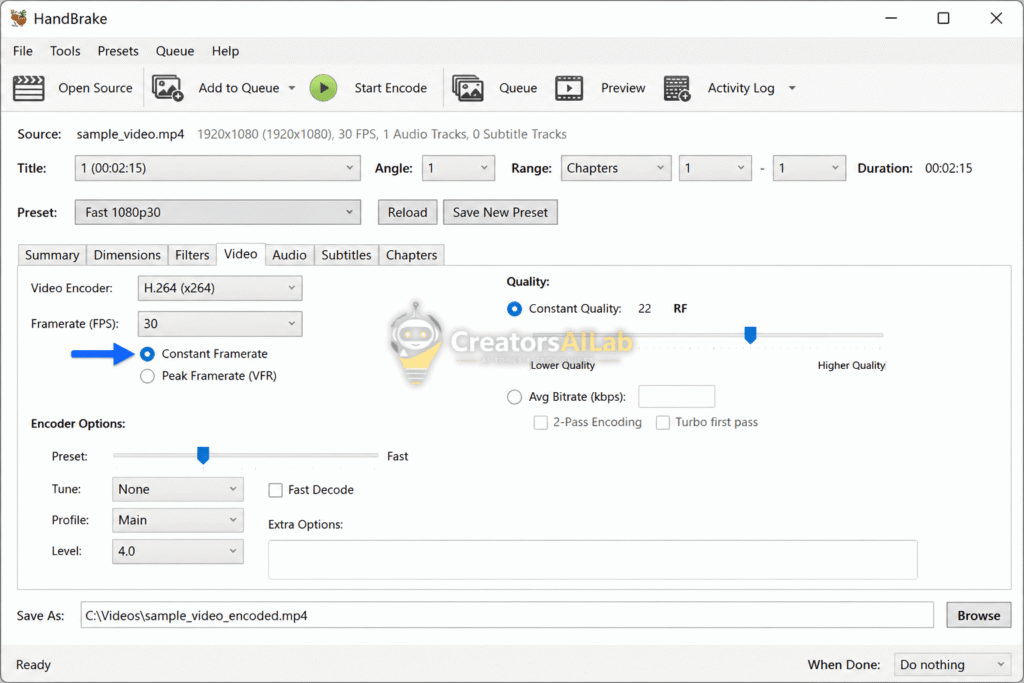
- Drop your AI video into Handbrake.
- Go to the “Video” tab.
- Select “Constant Framerate” (CFR).
- Hit export.
Need more help with your export settings? Read our full guide on Opus clip audio extraction failed.
Fix 2: ElevenLabs API Latency & “Voice Not Found”
You are trying to automate voiceovers. Instead of crisp audio, your script throws a “Voice Not Found” error or takes forever to return the file.
An elevenlabs api latency fix is required immediately. Bad API calls drain your credits and break automation sequences.
Why This Happens (The Technical Cause)
If you are streaming audio, you are likely using WebSockets. When the connection drops tiny packets, the server kills the request.
Additionally, the “Voice Not Found” error usually means your API key is pinging the wrong server region, or the specific Voice ID was deleted from your library. It’s a routing failure.
The Developer Fix Protocol
First, verify your Voice ID in the dashboard. Copy it directly. Do not type it manually.
Next, check your chunking size if you are streaming the audio. Lower the chunk size to keep the WebSocket active.
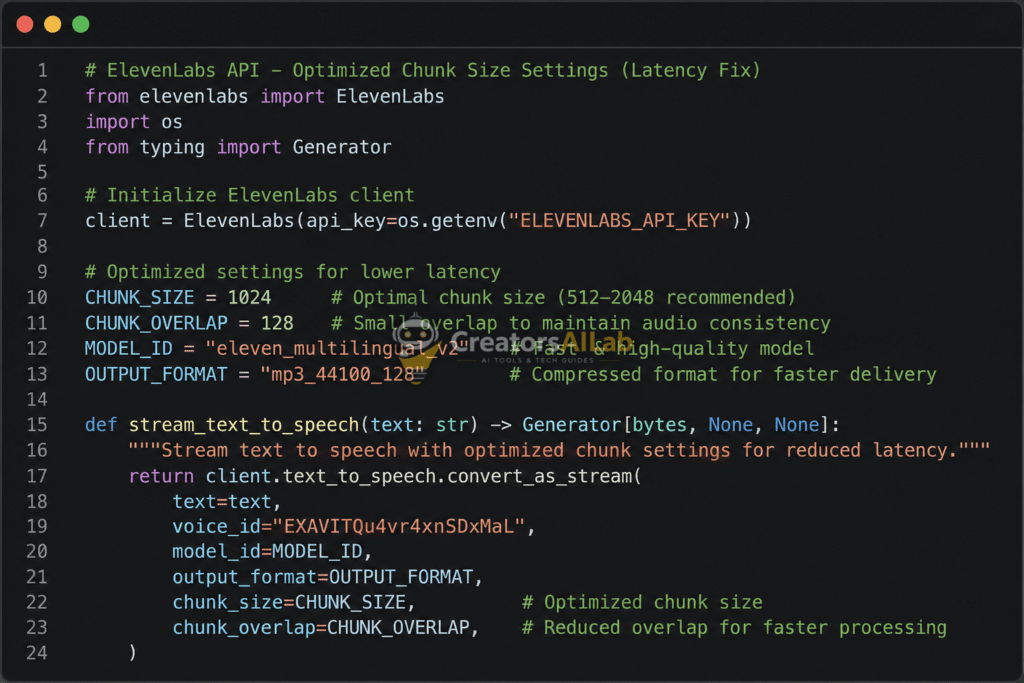
For exact code parameters, check the ElevenLabs Official API Documentation for WebSocket Streaming.
Fix 3: Midjourney V6.1 “Invalid Parameter” Web UI Error
You type a brilliant prompt. You hit enter. The Web UI instantly blocks it with a red error message.
The midjourney v6 invalid parameter web ui error is stopping your visual workflow. Discord used to ignore bad commands. The new Web UI does not.
Why This Happens (The Technical Cause)
The web interface uses an incredibly strict parser. It rejects prompts that contain deprecated commands or formatting typos.
If you put two spaces between dashes, it fails. If you use an old V5 aspect ratio command, it fails. The system demands perfect syntax.
The Prompt Formatting Fix
You have to clean your inputs. Look closely at your negative prompts.
- Wrong:
-- no text, watermarks(Space after the dashes) - Right:
--no text, watermarks(No space)
Always ensure your aspect ratios are exact. Type --ar 16:9, not --ar 16x9. Fixing these tiny typos clears the error instantly.
Final Workflow Optimization for AI Creators
Stop blaming the software when you hit a wall. Most tools work perfectly once you feed them the correct data formats.
To permanently fix ai creator workflow errors, standardize your pipeline. Always convert to CFR, strictly format your code, and clean your prompts.
Consistency is everything. Set up presets. Stick to them.
FAQs Related to How to Fix AI Creator Workflow Errors
1: Why does CapCut audio go out of sync with AI video?
AI tools often export video using a Variable Frame Rate (VFR) to save bandwidth. CapCut struggles to process VFR, causing the audio track to gradually drift out of sync on the timeline.
2: How do I fix the ElevenLabs API timeout error?
To fix ElevenLabs API latency, check your WebSocket connection settings. Reduce the chunk size of your audio stream requests to prevent the server from dropping the connection.
3: What causes the Midjourney Invalid Parameter error on the website?
The Midjourney Web UI has a strict syntax parser. Using double spaces, outdated commands, or incorrect dashes (like -- no instead of --no) will instantly trigger an invalid parameter flag.
About the Author