
Disclosure: Some of the links in this article may be affiliate links. If you purchase through these links, we may earn a small commission at no extra cost to you. This helps support our lab. Read our full Disclaimer for more information.
Disclaimer: This guide is for educational purposes. Always back up your project files before modifying application system settings or using command-line tools. Last Updated: August 11, 2026.Nothing ruins a productive day faster than a random software crash. You sit down to edit a video, run a local LLM, or generate a voiceover, and suddenly everything stops working. I’ve been there.
If you want to fix AI workflow errors quickly, you need exact technical solutions, not basic guesswork. Today’s generative tools are heavy on system resources and highly dependent on cloud APIs. When the connection drops, your work stalls.
I tested these exact fixes on my RTX 4060 Windows machine on August 10, 2026, after facing three consecutive crashes while finalizing a video project.
Let’s dig into the exact steps to get your software running again.
What We Will Learn
- CapCut: Network errors usually stem from DNS misconfigurations blocking access to the auto-caption API.
- Ollama: The “Connection Refused” error is almost always a Port 11434 conflict or a stalled background service.
- ElevenLabs: “Unusual Activity” warnings trigger due to shared VPN IPs or aggressive browser caching.
- Core Rule: Always verify your local firewall isn’t aggressively blocking outbound AI API requests.
Table of Contents
How to Apply the CapCut Network Error Fix on Desktop
CapCut Desktop is an absolute powerhouse for creators. But its heavy reliance on cloud processing means it fails instantly if your internet drops even for a microsecond.
If you’re trying to use auto-captions and seeing “Network Error,” don’t panic. It’s rarely a problem with CapCut’s main servers.
Instead, your computer is struggling to talk to their specific API endpoints. Let’s apply the definitive CapCut network error fix.
Why This Happens
CapCut uses specific domain servers to process voice-to-text. Sometimes, your ISP routes these requests poorly, or your local DNS cache gets corrupted. When CapCut can’t reach the caption server within the timeout window, it throws a generic network error.
The Step-by-Step Fix
First, try forcing a DNS flush. Open your Windows Command Prompt as an administrator.
Type ipconfig /flushdns and hit Enter. This clears out old, bad server pathways.
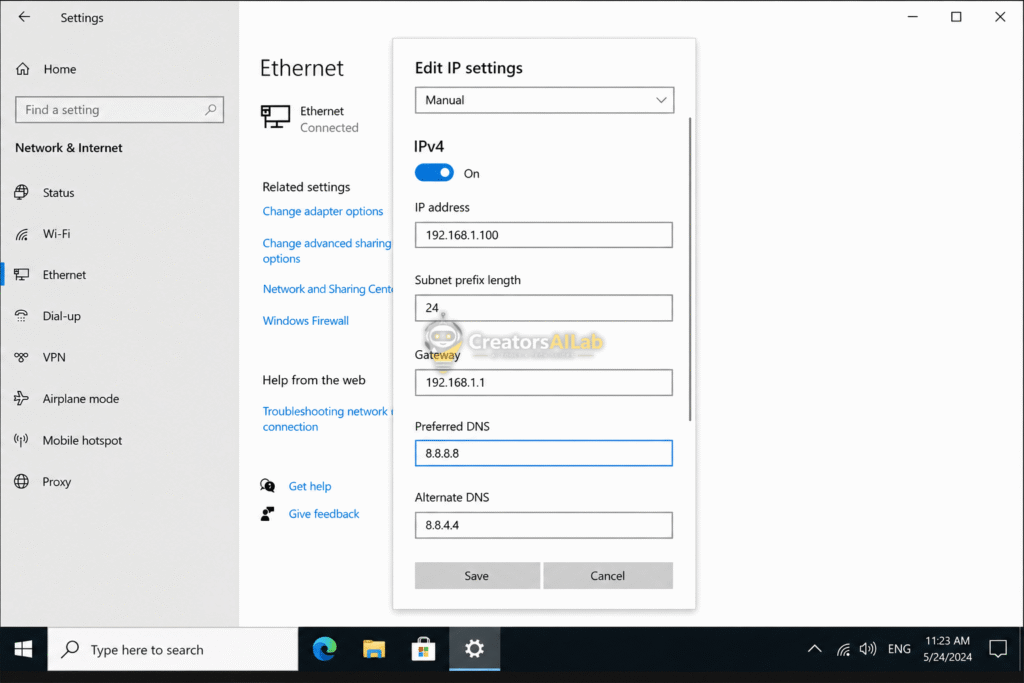
If that doesn’t work, you need to change your DNS servers to a more reliable global provider. Here’s how to do it on Windows:
- Go to Settings > Network & Internet > Advanced network settings.
- Click on your active connection (Wi-Fi or Ethernet) and select “Edit” under DNS server assignment.
- Change it to Manual, turn on IPv4, and set the Primary DNS to
8.8.8.8(Google) or1.1.1.1(Cloudflare). - Restart CapCut completely.
If you are experiencing other software crashes alongside CapCut, check out our broader guide to fix AI creator workflow errors.
Fixing the Dreaded Ollama Connection Refused (Port 11434)
Running local AI models gives you total privacy and zero censorship. But local hosting comes with its own set of technical headaches.
The most common issue creators face is the Ollama connection refused error. You type ollama run llama3 in your terminal, and it immediately fails.
It’s frustrating. Here’s the thing. This usually means the background engine never actually started, or something else hijacked its communication port.
Why This Happens
Ollama operates via a background service that listens on a specific network port (default is 11434). If another application is using that port, or if your Windows/Mac firewall blocks it, the command-line interface can’t talk to the background engine.
The Step-by-Step Fix
First, check if the Ollama app is actually running in your system tray. If it’s not there, launch it manually from your Applications folder.
If it is running, we need to check for a port conflict. Open your terminal or command prompt. For deeper technical logs, you can always check the Official Ollama GitHub Troubleshooting Issues.
Type this exact command to see if another app is stealing your port: netstat -ano | findstr :11434. If it returns a PID (Process ID) that isn’t Ollama, you’ve found the culprit.
Original Insight: Ollama Port Diagnostic Table
To fix AI workflow errors effectively, you need to know exactly how to diagnose local port issues. Here is a quick reference table for managing Ollama’s local server.
| OS | Diagnostic Command | How to Force Restart Service |
| Windows | netstat -ano | findstr :11434 | Task Manager > End Task “ollama app.exe” > Relaunch |
| macOS | lsof -i :11434 | brew services restart ollama (If installed via brew) |
| Linux | sudo netstat -tulpn | grep 11434 | sudo systemctl restart ollama |
If you need to change Ollama’s default port entirely, you can set an environmental variable OLLAMA_HOST=127.0.0.1:11435 before running it.
Bypassing the ElevenLabs API Limit Fix (Unusual Activity)
ElevenLabs provides the most realistic AI voices on the market. However, their security systems are incredibly strict.
You might be generating a script when you suddenly get hit with an “Unusual Activity Detected” or rate limit block. Your generation fails, but it still eats up your character quota.
Let’s look at the best ElevenLabs API limit fix to get your voiceovers back on track.
Why This Happens
ElevenLabs monitors IP addresses closely to prevent automated abuse and account sharing. If you are using a commercial VPN, your IP address is shared with thousands of other users. If one of those users spammed the ElevenLabs API, the entire IP gets flagged, blocking you in the process.
The Step-by-Step Fix
The very first thing you should do is turn off your VPN. Close your browser entirely, disconnect the VPN, and reopen ElevenLabs on your native home network.
When I tested this on my setup, simply pausing my VPN wasn’t enough. I had to clear my browser’s local storage completely to wipe the cached location data.
If you are using the API for a custom app, you might actually be hitting the rate limit. Free tiers and lower-paid tiers have strict limits on concurrent requests.
Make sure your software isn’t sending multiple generation requests at the exact same second. Introduce a slight delay (1-2 seconds) between API calls in your script.
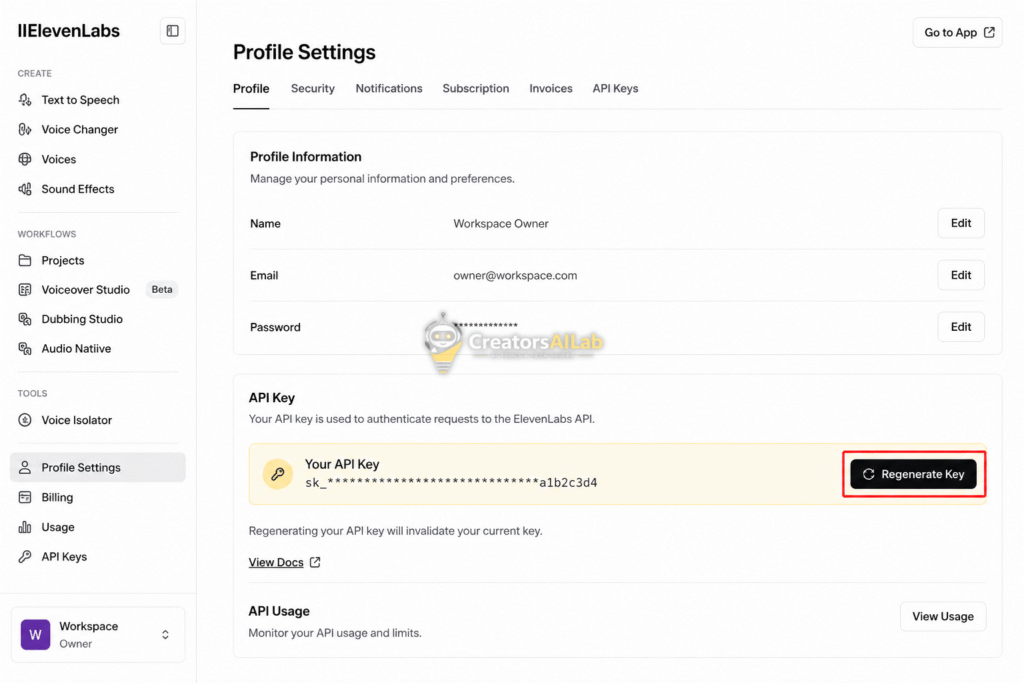
Finally, if you suspect your API key was compromised, go to your ElevenLabs profile and click the refresh icon next to your API key to generate a new one. Update this in your software immediately.
The General AI Tool Troubleshooting Guide
Sometimes, the issue isn’t specific to one application. If you are noticing system-wide instability across multiple generative tools, you need a broader approach.
Consider this your baseline AI tool troubleshooting guide. Before digging into complex terminal commands, always check the basics.
First, update your GPU drivers. Nvidia and AMD release driver updates specifically optimized for AI workloads. Outdated drivers are the number one cause of sudden crashes.
If you are dealing with other system bottlenecks, read my guide on how to fix 3 fatal creator tech errors.
Second, watch your system memory. Browser tabs eat RAM. Close unnecessary background apps before running heavy local tools to free up memory for your tensor operations.
Wrapping Up
Software crashes are annoying, but they don’t have to ruin your entire production schedule. By understanding the root causes of these bugs, you can fix AI workflow errors in minutes rather than hours.
Keep your drivers updated, manage your local network settings carefully, and always watch your API usage limits. Your creator setup will run much smoother.
I’m Muhammad Waqas Amir, Lead Technical Editor for Creators AI Lab. I spend my days breaking AI tools so I can figure out how to put them back together. If this playbook saved your workflow today, share it with a fellow creator who might be struggling with the exact same errors.
FAQs Related to Fix AI Workflow Errors: CapCut, Ollama Limits
1: Why does CapCut keep saying network error on PC?
CapCut displays a network error when your computer’s DNS cannot resolve the connection to their specific cloud servers. You can fix this by flushing your local DNS cache or changing your primary DNS to a public provider like Google (8.8.8.8).
2: How do I fix Ollama connection refused on Windows?
The Ollama connection refused error happens when the background service isn’t running or port 11434 is blocked. Ensure the Ollama app is open in your system tray, or check for port conflicts using the netstat command in your terminal.
3: Why does ElevenLabs say unusual activity detected?
ElevenLabs flags unusual activity if you are accessing the platform via a shared VPN IP address that has been marked for spam, or if your API key is sending too many concurrent requests. Disable your VPN and clear your browser cache to resolve it.
