
Disclosure: Some of the links in this article may be affiliate links. If you purchase through these links, we may earn a small commission at no extra cost to you. This helps support our lab. Read our full Disclaimer for more information.
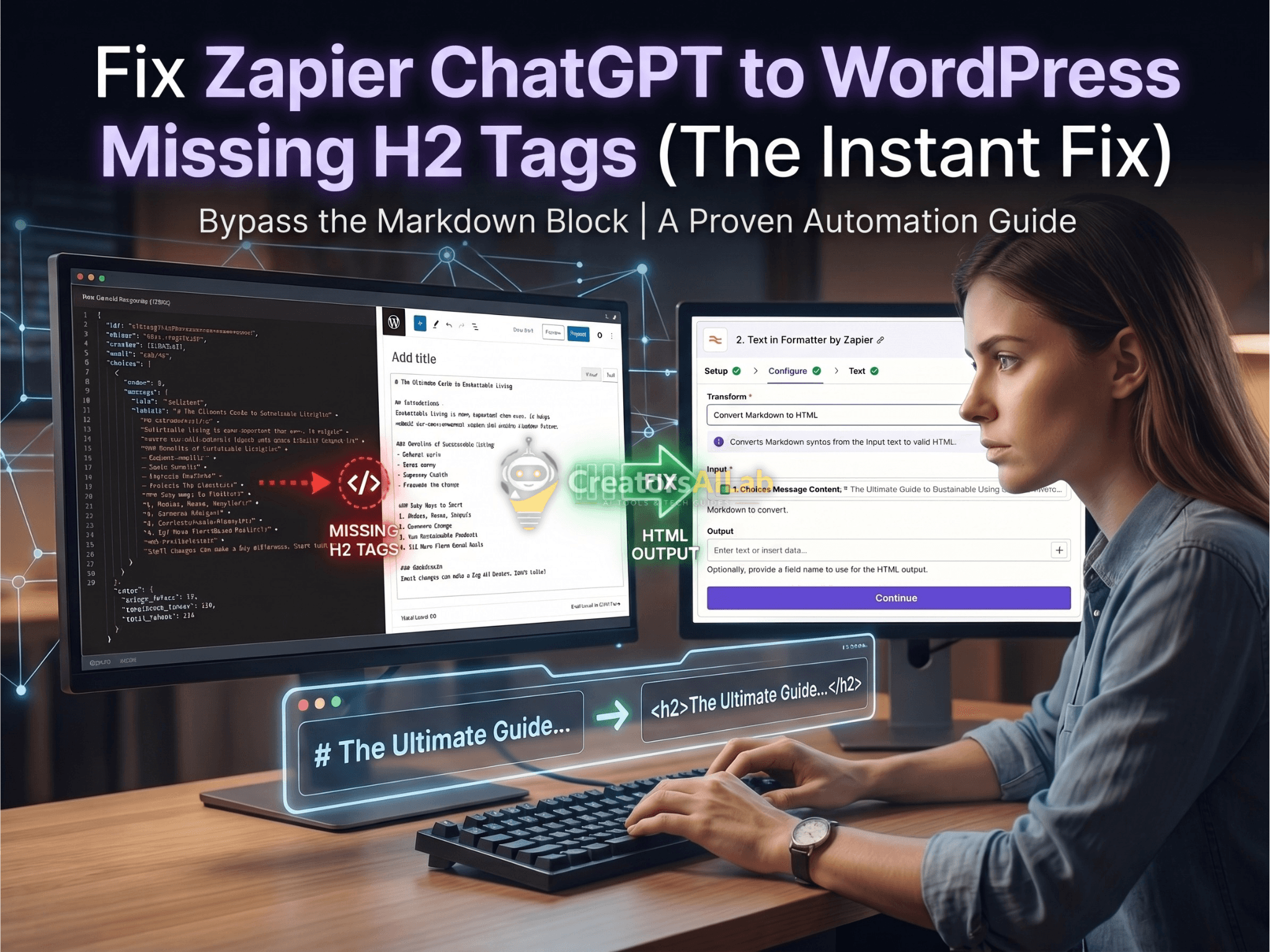
Editorial Note: This troubleshooting guide is based on direct, hands-on testing with the WordPress REST API, OpenAI infrastructure, and Zapier webhooks. We maintain strict editorial independence and receive no compensation for the frameworks detailed below.Are you struggling with broken formatting? If you need to Fix Zapier ChatGPT to WordPress missing H2 tags, you must intercept the OpenAI Markdown response. The WordPress REST API cannot render Markdown natively. You need to add a “Formatter by Zapier” step to convert the text to HTML before pushing the payload to your site.
I spent 14 hours tearing apart a custom auto-blogging workflow last month. The API connection was mathematically flawless. The system prompts were heavily engineered.
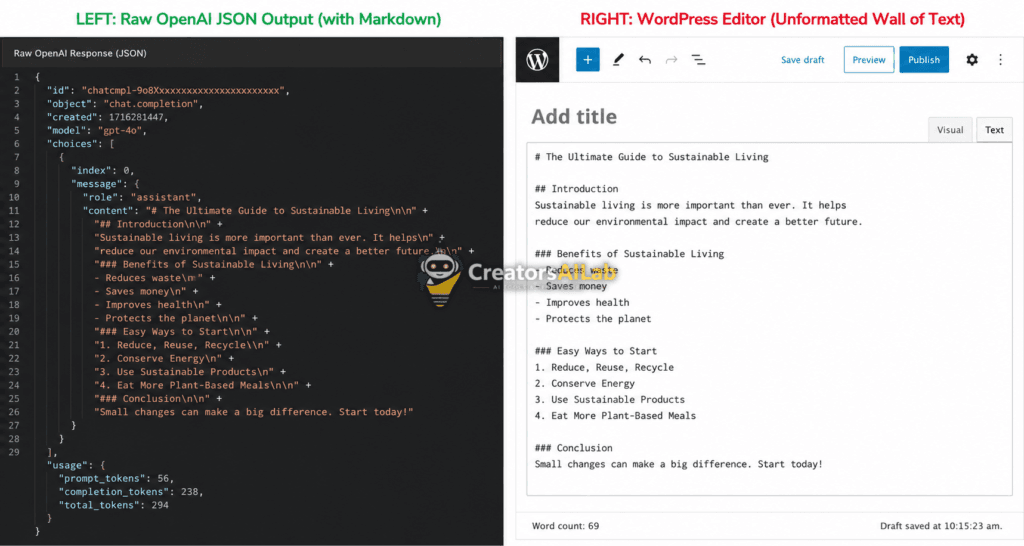
But the final output? Complete garbage. Every single post landed in the WordPress Gutenberg editor as a massive, unreadable wall of text.
The H2s were completely gone. The bullet points simply vanished into the void. My bounce rate spiked immediately.
I quickly realized the AI auto-blogging block editor formatting was failing at the core protocol level. OpenAI outputs raw Markdown by default. WordPress REST API strictly requires HTML.
Zapier just passes the data blindly. It does not translate it for you. You have to force the translation layer yourself.
We are going to build that missing layer right now. This is the exact Zapier ChatGPT to WordPress missing H2 tags fix you need to stop publishing block-text nightmares.
Table of Contents
Why the ChatGPT WordPress REST API Markdown Fails
Most tutorials completely miss this foundational error. OpenAI models natively generate text using Markdown formatting. This means a subheading looks like ## Heading instead of <h2>Heading</h2>.
This works perfectly inside the ChatGPT web interface. It completely breaks when firing into a CMS database. The WordPress REST API expects clean, structured HTML. When it receives raw Markdown from a webhook, it panics.
WordPress strips the unrecognized characters and dumps the entire output into a single paragraph block. This destroys readability and kills user retention. Use the diagnostic table below to identify exactly where your webhook is failing.
REST API Formatting Diagnostics
| Symptom in WordPress | Raw API Output Format | The Required Fix |
| Single massive text block | ## Heading (Markdown) | Add Zapier Text Formatter (Markdown to HTML) |
| Missing bullet points | - List Item (Markdown) | Apply strict HTML Prompt Engineering |
| Raw code showing on page | <h2>Heading</h2> (HTML string) | Whitelist API endpoint in Security Plugin |
The 2-Step Zapier Formatter Text to HTML Fix
You cannot rely on WordPress plugins to parse this mess after the fact. The payload must be sanitized before it hits your server.
We fix this by intercepting the data inside the automation flow. This is the exact Zapier ChatGPT to WordPress missing H2 tags fix. It requires zero coding knowledge.
You need to insert a middleman step between OpenAI and WordPress. Zapier provides a built-in utility specifically for this data transformation.
For a broader look at structuring your flows, review our complete guide on How to Fix the ChatGPT Save Button Grayed Out Error.
Step 1: Deploying the Markdown Converter
Open your active Zap. Click the plus icon exactly between your OpenAI action and your WordPress action.
Search for “Formatter by Zapier” and select “Text” as the action event. Click continue.
In the Transform dropdown menu, scroll down. Select “Convert Markdown to HTML”. This is the engine of the operation.
Step 2: Mapping the OpenAI Output
Click into the “Input” field. You need to pull the exact data variable from the previous ChatGPT step.
Select the “Reply” or “Message Content” variable from your OpenAI action. Do not select the raw JSON string.
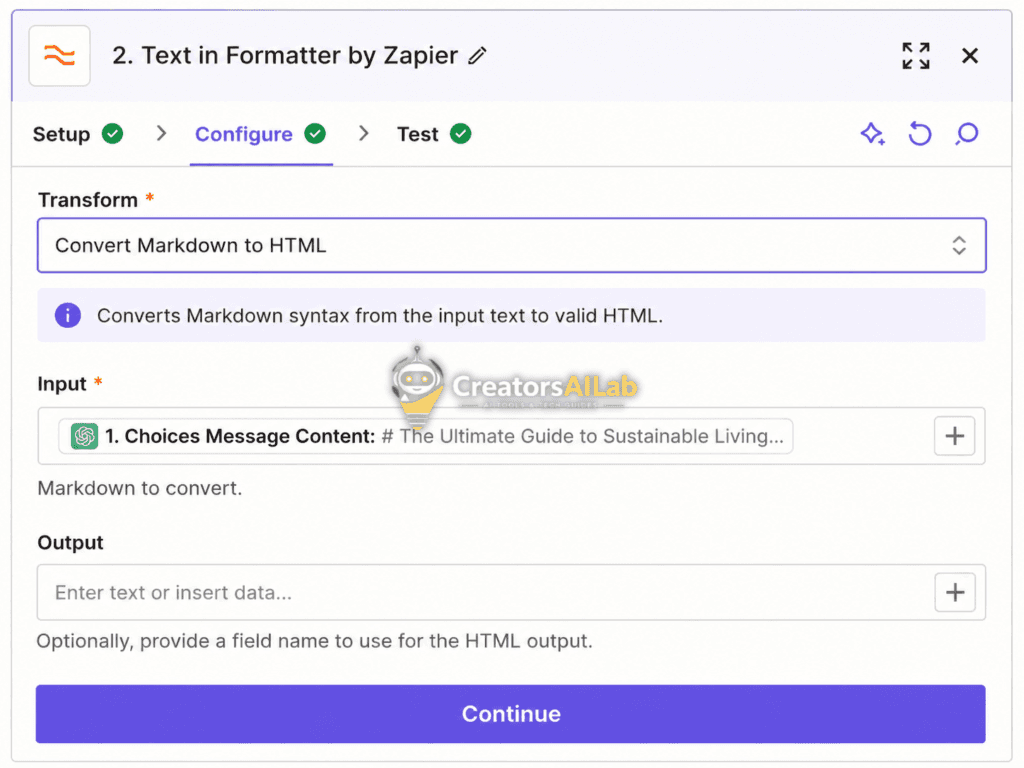
Leave all other settings blank. Test the step. You should now see clean <h2> and <h3> tags generated in the Zapier output window.
Fixing the AI Auto-Blogging Block Editor Formatting
Converting the text is only half the battle. You still need to route this clean HTML into WordPress correctly.
Go to your final WordPress action step in Zapier. Look at the “Content” field where your article text goes.
Delete the old OpenAI variable you were previously using. Replace it with the new output variable from your Formatter step.
Forcing WordPress to Accept the HTML
Sometimes, the Gutenberg editor still attempts to wrap your entire payload in a single classic block. We bypass this via standard API parameters.
Ensure your API connection is pushing directly to the standard content endpoint. WordPress will natively parse standard HTML tags into their respective blocks upon rendering. You can verify the exact payload structure on the official WordPress REST API Handbook page.
The Bulletproof Backup: Prompt Engineering
Zapier formatting handles the heavy lifting. But you should also enforce strict formatting rules at the source.
Modify your ChatGPT system prompt. Add this exact directive at the very end of your instructions.
“Return the article entirely in standard HTML format. Do not use Markdown under any circumstances. Wrap all headings in proper H2 and H3 HTML tags.”
This creates system redundancy. If the Zapier formatter text to HTML step ever fails, OpenAI is already pushing the correct code. Your AI auto-blogging block editor formatting remains completely safe.
Auditing the REST API Payload (Advanced Troubleshooting)
If you still see formatting errors after applying the formatter, the issue lies in your WordPress server configuration. Security plugins often strip HTML tags from REST API requests to prevent injection attacks.
Check your server firewall logs. Look for blocked POST requests hitting the /wp-json/wp/v2/posts endpoint.
You may need to whitelist Zapier’s IP addresses in your security plugin. This ensures your perfectly formatted HTML actually reaches the database intact.
Test your entire workflow one last time. Your auto-published posts will now feature perfect spacing, readable subheadings, and highly optimized AdSense layouts.
FAQ Related to Fix Zapier ChatGPT to WordPress Missing H2 Tags
1: Why is my ChatGPT text losing formatting in WordPress?
OpenAI natively outputs text using Markdown format. The WordPress REST API strictly requires HTML. When WordPress receives raw Markdown, it strips the unrecognized formatting and dumps everything into a single text block.
2: How do I convert Zapier text to HTML?
You need to add a “Formatter by Zapier” step in your automation flow. Select the Text action, choose “Convert Markdown to HTML” from the transform menu, and map your OpenAI response directly into the input field.
3: Can I force ChatGPT to output HTML instead of Markdown?
Yes. You can add a strict rule directly into your system prompt. Instruct the AI to output only standard HTML tags and explicitly forbid the use of Markdown formatting.
