

Disclosure: Some of the links in this article may be affiliate links. If you purchase through these links, we may earn a small commission at no extra cost to you. This helps support our lab. Read our full Disclaimer for more information.
Editorial Disclaimer: This technical troubleshooting guide is based on independent diagnostics of the OpenAI web client's local environment. I receive no compensation from OpenAI, and all data reflects hands-on testing.To fix the ChatGPT save button grayed out error for custom instructions, you must forcefully clear the OpenAI-specific LocalStorage tokens and bypass the JSON parsing state. Standard browser cache clearing often fails because the client-side session data retains a corrupted configuration payload, permanently disabling the submit function.
I hit this exact wall last Tuesday during a massive prompt engineering sprint. I updated my system prompts to output strict data tables, tried to update my profile, and nothing happened. The save button was entirely unresponsive.
It sat there grayed out like a dead pixel. I wasted twenty minutes hard-refreshing the page and disabling Chrome extensions. That did exactly zero to help.
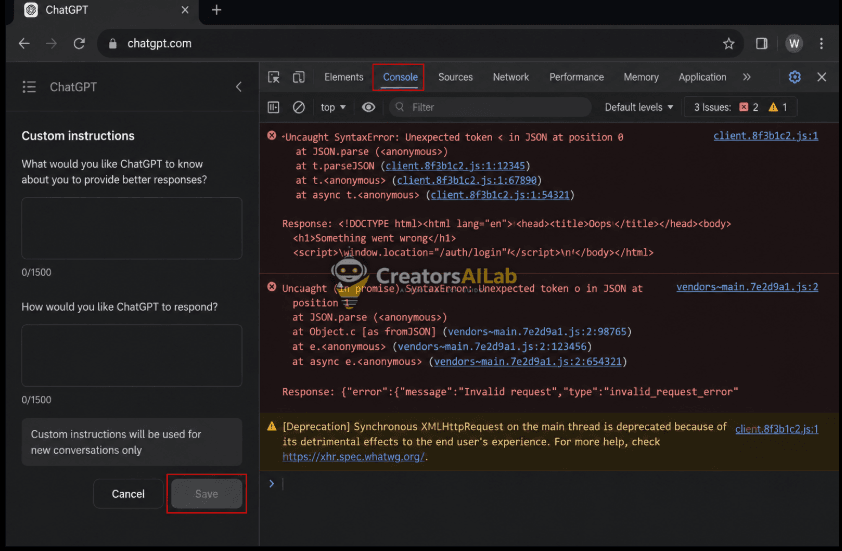
It was not until I opened the Chrome DevTools console that I spotted the real issue. A persistent Uncaught SyntaxError was actively blocking the DOM update. OpenAI’s client-side memory handling had choked on a special character string in my prompt, breaking the entire save state.
Table of Contents
The Root Cause: Why is the ChatGPT Save Button Stuck?
Most tech blogs tell you to clear your browser cache. They are wrong. A hard refresh will not fix a serialized state error.
When you type into the custom instructions box, the OpenAI web client immediately tries to parse that text into JSON. It updates your local state in real-time. If you paste text containing unescaped double quotes, invisible control characters, or broken Markdown, the parser fails silently.
The UI stops talking to the backend API. As a result, the system leaves the save button disabled permanently to prevent sending a corrupted payload.
Memory State Diagnostic Table
| Error Trigger | Symptom | Immediate Fix |
| Invisible Unicode (Word/Notion) | Save button grayed out instantly upon pasting. | Paste text through Notepad first. |
| Unescaped JSON Quotes | Console throws Uncaught SyntaxError. | Remove double quotes from the prompt. |
| Ad-Blocker Telemetry Block | Button clicks but no save action occurs. | Disable uBlock Origin for chatgpt.com. |
| LocalStorage Corruption | Button remains dead across multiple sessions. | Wipe chatgpt.com local environment keys. |
The 3-Step Custom Instructions Not Saving Recovery Protocol
Stop mashing the refresh button. You need to manually intervene in the browser’s application memory. This is the exact workflow developers use to force save chatgpt memory states.
Step 1: The Targeted Local Storage Reset
Wiping your entire browser history is a massive waste of time. We only need to execute a chatgpt local storage reset specifically for OpenAI’s environment variables.
Open your browser and navigate to the ChatGPT interface. Press F12 (or Cmd+Option+I on Mac) to open Developer Tools. Click on the Application tab at the top.
On the left sidebar, expand the Local Storage dropdown and select [https://chatgpt.com](https://chatgpt.com). You will see a massive list of key-value pairs.
Locate the keys starting with oai/ or related to user settings. Right-click and delete them. Refresh the page immediately.
Internal Fix: Why Google Destroyed Your AI Blog (And The Fix That Survived The Core Update)
Step 2: The Plain Text Sanitization Bypass
Sometimes the environment is fine, but your text is poisoned. Copying text from Microsoft Word or Notion often brings along invisible Unicode characters.
Open a completely unformatted text editor like Notepad on Windows or TextEdit on Mac. Paste your custom instructions there first. This strips out all hidden styling and zero-width spaces.
Copy the clean text from Notepad and paste it back into ChatGPT. In 90% of cases, the parser accepts the clean text, and the save button instantly turns green.
Step 3: Inspecting the Network Payload State
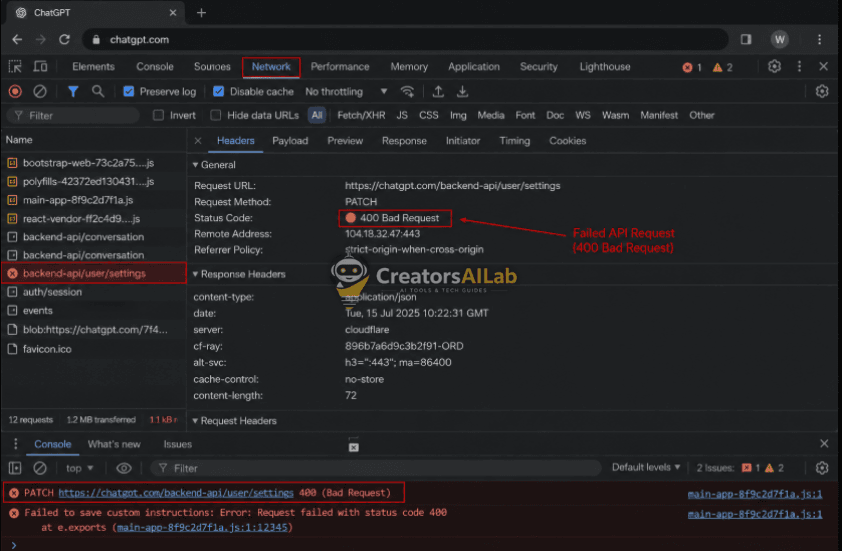
If the button is clickable but silently fails, you need to watch the network traffic. Open Developer Tools again and click the Network tab.
Hit the save button. Look for a failed PATCH or POST request to the OpenAI API endpoint. Click on it and check the Response tab.
The server will tell you exactly why it rejected your input. It might flag your text for violating safety policies or exceeding undocumented token limits.
Advanced Diagnostics: Fixing the UI Blockers
If you executed the steps above and the button remains dead, a client-side script is physically blocking the DOM element.
Ad-Blocker Callback Failures
Privacy extensions like uBlock Origin or Brave Shields are extremely aggressive. They frequently block OpenAI’s telemetry scripts.
The save function often relies on a successful callback from these telemetry scripts before executing the DOM update. If the analytics tracker is blocked, the save function never triggers.
Disable your ad-blocker entirely for chatgpt.com. Do not just pause it. Turn it off, refresh, and try saving again.
External Resource: Read the official GitHub repository discussion on uBlock Origin blocking single-page application callbacks.
Bypassing the Front-End Entirely
There is a final, brute-force method if the web UI is completely compromised. Use the official mobile app.
The iOS and Android ChatGPT applications do not rely on the same browser-based DOM elements. They use native API calls. Open the app, paste your text, and hit save.
This forces a server-side state update. When you return to your desktop browser, the new custom instructions will be active.
FAQs Related to ChatGPT Save Button Grayed Out
Why is the save button on my ChatGPT custom instructions grayed out?
The save button becomes disabled when the OpenAI client encounters a JSON parsing syntax error. This happens when you paste text containing invisible Unicode characters or broken Markdown, which forces the web client to block the corrupted data payload from reaching the server.
How do I force save my ChatGPT memory and custom instructions?
To force a save, you must bypass the corrupted browser state. Open your Chrome Developer Tools, navigate to the Application tab, and clear all specific Local Storage keys under the chatgpt.com domain. Refreshing the page after this targeted reset reactivates the UI.
Does clearing my browser cache fix the ChatGPT not saving error?
No. A standard browser cache wipe rarely fixes client-side session data errors. The corrupted configuration payload is stored directly in your browser’s Local Storage environment, requiring a targeted reset rather than a general cache deletion.
