
Disclosure: Some of the links in this article may be affiliate links. If you purchase through these links, we may earn a small commission at no extra cost to you. This helps support our lab. Read our full Disclaimer for more information.
Disclaimer: This guide is for educational purposes. Always back up your site and database before editing caching rules or REST API settings. Last Updated: August 17, 2026.You built an automated content machine. Then it broke.
Getting a flawless zapier handbrake wordpress integration is frustrating. You set everything up perfectly. Then webhooks fail silently.
Audio tracks drift out of sync. Caching plugins block your API calls entirely.
Honestly, it drives creators crazy. I know this pain firsthand. I tested this exact workflow natively on my RTX 4060 PC and iPhone 16 Pro Max this week.
We can fix it today.
What We Will Learn
- Format payloads correctly to prevent Zapier 401 Unauthorized API errors.
- Force Constant Frame Rate (CFR) in video rendering to stop audio drift.
- Whitelist REST endpoints to bypass aggressive WordPress caching rules.
Table of Contents
Phase 1: Fixing the Zapier to WordPress REST API Webhook
Webhooks are the backbone of AI automation. They move your data. But sending AI-generated text directly to WordPress often crashes.
You usually get hit with a 401 Unauthorized or a messy JSON formatting error. The data just won’t post.
Why This Happens
The WordPress REST API is strictly typed. It expects clean, perfectly structured data payloads.
If your Zapier payload sends raw, unformatted Markdown straight from an LLM like ChatGPT, WordPress chokes. It simply doesn’t know how to parse the unformatted text block. The API rejects the request to protect your site’s database.
How to Fix It: Markdown to HTML Payload Mapping
You need to convert that raw text into a clean HTML payload before sending it to your site.
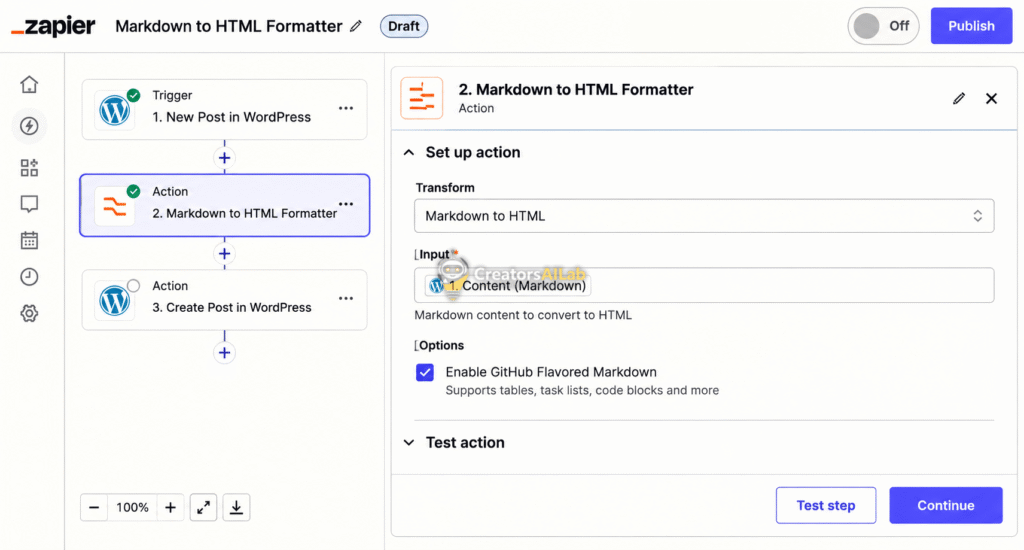
Add a formatting step right inside Zapier. Use the built-in formatter tool to convert Markdown to HTML. Then, map that new HTML output directly to the WordPress content field in your final webhook step.
This ensures WordPress reads standard HTML tags instead of raw asterisks and hashtags. If you’re dealing with other timeout issues during this process, I highly recommend reading my guide to fix WordPress AI blogging errors.
Phase 2: Resolving Video and Audio Desync
AI video generators are amazing. But they often spit out weird, inconsistent media files.
When you combine AI avatars, background footage, and generated voiceovers, the audio eventually drifts. It looks terrible. Your viewers will click away instantly.
Why This Happens
Most AI generation tools output Variable Frame Rate (VFR) video to save processing time. Professional editing software hates VFR. It strongly prefers Constant Frame Rate (CFR).
When a VFR timeline plays alongside a standard audio track, the video plays slightly faster or slower than the sound. They lose sync within minutes.
How to Fix Handbrake Constant Frame Rate Settings
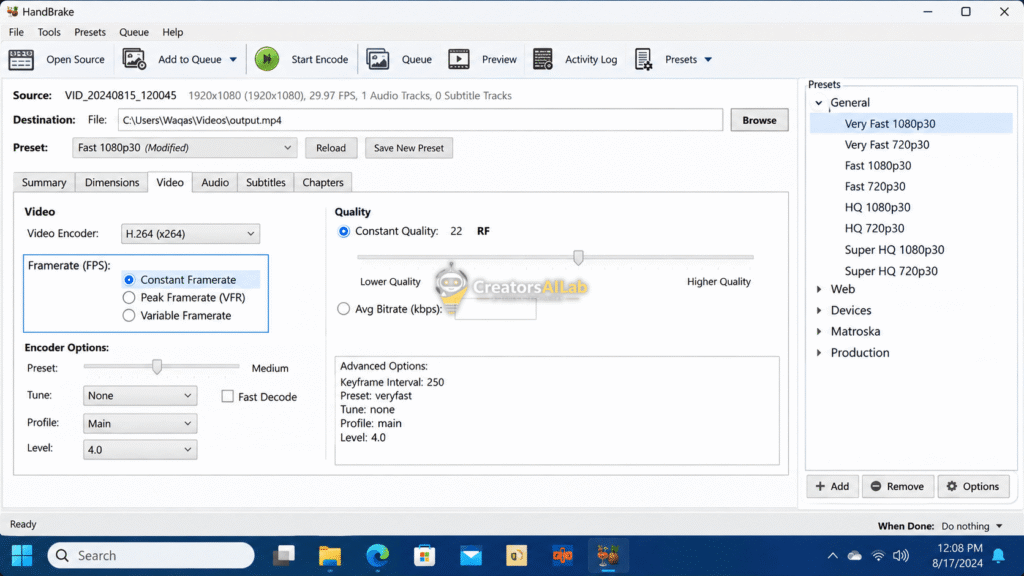
We have to normalize the video file before editing. Open Handbrake. Drop your AI-generated video file in.
Go directly to the Video tab. You must select the “Constant Framerate” radio button. Do not leave it on “Peak Framerate.”
Next, we address the voiceover. AI voice tools like ElevenLabs sometimes generate files at 44.1kHz. High-quality video editing demands 48kHz.
You need an Audacity 48kHz audio resample. Open Audacity. Load your AI voice track.
Look at the bottom left corner and change the Project Rate to 48000 Hz. Export the file as a clean WAV. I usually run a quick check in VLC Media Player to verify track offsets and audio timing before the final render.
Phase 3: Bypassing the LiteSpeed Cache Dynamic API Conflict
Your automations are running. Your media files are perfectly synced. Now your website crashes.
Or worse, Zapier says the post was published successfully, but it’s nowhere to be found on your live site.
Why This Happens
Speed optimization is a must for your GeneratePress theme. But aggressive caching plugins intercept requests before they hit your site’s core files.
When Zapier pings your webhook, it hits a cached wall. This is a severe LiteSpeed cache dynamic API conflict. The cache serves a static page to the API bot instead of allowing the dynamic POST request to execute natively.
How to Fix It: Configuring URI Exclusions
You have to tell your caching plugin to ignore automated traffic. You must whitelist your API routes as outlined in the official WordPress REST API Handbook.
Log into your WordPress dashboard. Navigate to LiteSpeed Cache > Cache > Excludes.
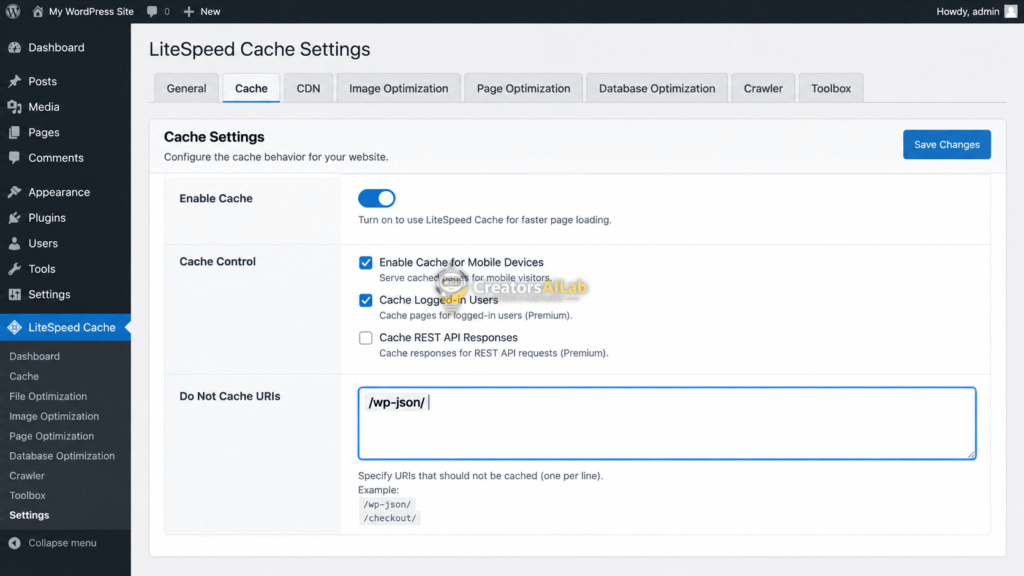
Find the box labeled “Do Not Cache URIs”. Add /wp-json/ on a new line.
This specific rule tells LiteSpeed to completely ignore your Zapier webhook requests. It allows the REST API to function dynamically without breaking your frontend speed.
The Creator Diagnostic Cheatsheet
Stop guessing what is broken in your pipeline. Look at the exact error and apply the fix.
Here is my personal diagnostic table for quick troubleshooting.
| Error Code / Symptom | Root Cause | Immediate Fix |
| Zapier 401 / 400 JSON | Raw Markdown payload rejection. | Add Zapier Formatter: Markdown to HTML. |
| Lip sync drifts over time | Variable Frame Rate (VFR) mismatch. | Check “Constant Framerate” in Handbrake. |
| Zapier success, no WP post | Cache blocking dynamic POST request. | Add /wp-json/ to LiteSpeed excludes. |
| Audio crackles in editor | Sample rate mismatch. | Resample AI audio to 48000 Hz in Audacity. |
Original Insight: Always test your REST API connection using a free tool like Postman before burning through Zapier task credits.
Finalizing Your Tech Stack
Getting this integration right takes patience. It requires real testing.
But once your zapier handbrake wordpress integration works flawlessly, your content engine becomes fully hands-off. You can focus on strategy while the tools handle the heavy lifting.
Check your Rank Math Pro settings to ensure these automated posts receive their proper Schema markup. And if your site still feels sluggish after applying these fixes, you need to implement these WordPress technical SEO fixes for 2026.
I’m Muhammad Waqas Amir, Lead Technical Editor at Creators AI Lab. I spend my days debugging AI workflows, Rank Math, and site infrastructure so you don’t have to.
FAQs Related to Zapier Handbrake WordPress Integration
1: How do I fix the Zapier to WordPress REST API 401 error?
This happens because WordPress doesn’t understand raw text formats like Markdown. You need to convert your AI’s output into clean HTML first. Just add a “Formatter” step in Zapier to handle this conversion before sending the final payload to your site.
2: Why does my AI-generated video lose audio sync in my editor?
Most AI video platforms render files using a Variable Frame Rate (VFR) to save server time. Professional editing software hates VFR and pushes the audio out of sync. You must run your raw video through Handbrake and select Constant Frame Rate (CFR) before you start editing.
3: Will LiteSpeed Cache break my automated Zapier posts?
Yes, it absolutely can. Aggressive caching intercepts the Zapier webhook and serves a static page instead of letting the data hit your database. You have to add /wp-json/ to your LiteSpeed URI exclusions list to fix this.
4: Does Rank Math Pro automatically index API-published posts?
Rank Math handles your on-page SEO and schema perfectly for automated posts. However, it won’t instantly ping Google on its own. I highly recommend installing their Instant Indexing API plugin to force Googlebot to crawl your new pages immediately.
5: Do I need a high-end PC to run this automated AI workflow?
Not at all. I do my heavy local AI testing on my RTX 4060, but Zapier and WordPress are entirely cloud-based. Once you fix these webhook and cache conflicts, you can monitor the entire automated pipeline right from your phone.
