
Disclosure: Some of the links in this article may be affiliate links. If you purchase through these links, we may earn a small commission at no extra cost to you. This helps support our lab. Read our full Disclaimer for more information.
Disclaimer: This guide is for educational purposes. Modifying WordPress core files carries risk and can break your site if done incorrectly. Always back up your site and database before making backend changes. Last Updated: July 2026.Your site is crawling. The WordPress dashboard feels like molasses. You try to check Google Search Console, and it’s bleeding red errors.
If you run an AI-assisted site, you’re probably hitting a technical wall. AI plugins demand massive server resources that standard hosting just can’t handle. Let’s fix wordpress ai blogging errors right now.
No fluff. Just the raw technical patches you need to get your site running fast, rendering ads correctly, and indexing on Google.
Bottom Line
- AI content generation overloads shared hosting, causing fatal API connection timeouts.
- WordPress blocks next-gen AI assets (AVIF images, JSON schema) by default, requiring a manual MIME type bypass.
- Bulk AI content creation destroys your Google crawl budget through auto-generated pagination.
- You can fix all three issues with lightweight code snippets and specific Rank Math configurations.
Table of Contents
How AI Plugins Destroy Standard WordPress Hosting
Here’s the thing most hosting companies won’t tell you. Standard WordPress environments are built for manual publishing, not automated AI API calls.
When you install heavy AI writers or SEO automation tools, your site constantly talks to external servers (like OpenAI). This constant background chatter eats up your PHP memory limit.
I tested this exact scenario on an entry-level shared hosting plan. It caused a total backend crash within 20 minutes of activating bulk AI generation.
When your server resources max out, AdSense scripts fail to load on the frontend. You lose money. Let’s patch these vulnerabilities one by one.
Issue 1: Fix cURL Error 28 in WordPress (API Timeouts)
You are trying to generate a post or analyze an article, but it hangs. Eventually, you see a red banner screaming: cURL error 28: Connection timed out.
This is the most common roadblock for automated sites. It halts your entire workflow. You can’t publish, and you can’t optimize.
Why This Happens
cURL is the software WordPress uses to send and receive data from external APIs. AI tools rely entirely on these cURL requests.
When your server’s configured timeout limit is too low, the connection drops before the AI tool can finish its job. The server literally gives up. We need to force your server to wait longer and give it more memory to handle the load.
The wp-config.php Code Fix
We will increase your PHP memory limit and max execution time. You need to access your site’s File Manager or use an FTP client.
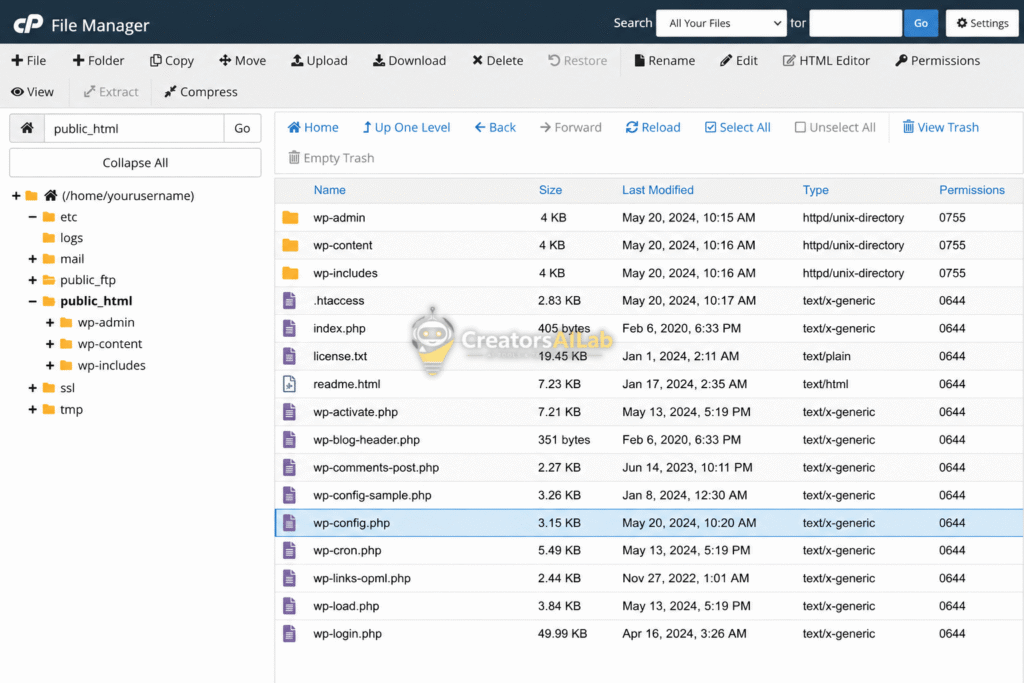
Open your wp-config.php file. Scroll down until you find the line that says /* That's all, stop editing! Happy publishing. */.
Paste this exact code right above that line:
PHP
define( 'WP_MEMORY_LIMIT', '512M' );
define( 'WP_MAX_MEMORY_LIMIT', '512M' );
set_time_limit(300);
Save the file. This tells WordPress it’s allowed to use 512MB of RAM and gives API calls a full 5 minutes (300 seconds) to complete.
Read our full tutorial on how to keep your backend lean: Fix ChatGPT JSON & Schema Errors (WordPress, Rank Math & API Bugs)
Issue 2: Allow AVIF and JSON Uploads in WordPress
You just generated a batch of incredibly lightweight, high-quality AVIF images from Midjourney. Or maybe you crafted the perfect custom FAQ schema in a JSON file.
You go to upload them to your Media Library. WordPress blocks you immediately with: Sorry, this file type is not permitted for security reasons.
This is infuriating. You’re trying to improve your Core Web Vitals, but the CMS is fighting you.
Why This Happens
WordPress maintains a strict, hardcoded whitelist of allowed MIME types (file formats). By default, modern formats like .avif and raw .json files are considered security risks.
The core developers haven’t updated the default whitelist to match modern AI workflows. We have to manually override the security protocol to tell WordPress these specific file types are safe.
The functions.php Bypass Code
Do not install a plugin just to allow new file uploads. That adds unnecessary bloat. We will use a clean PHP filter instead.
Navigate to your active theme’s folder (wp-content/themes/your-theme-name/). Open the functions.php file.
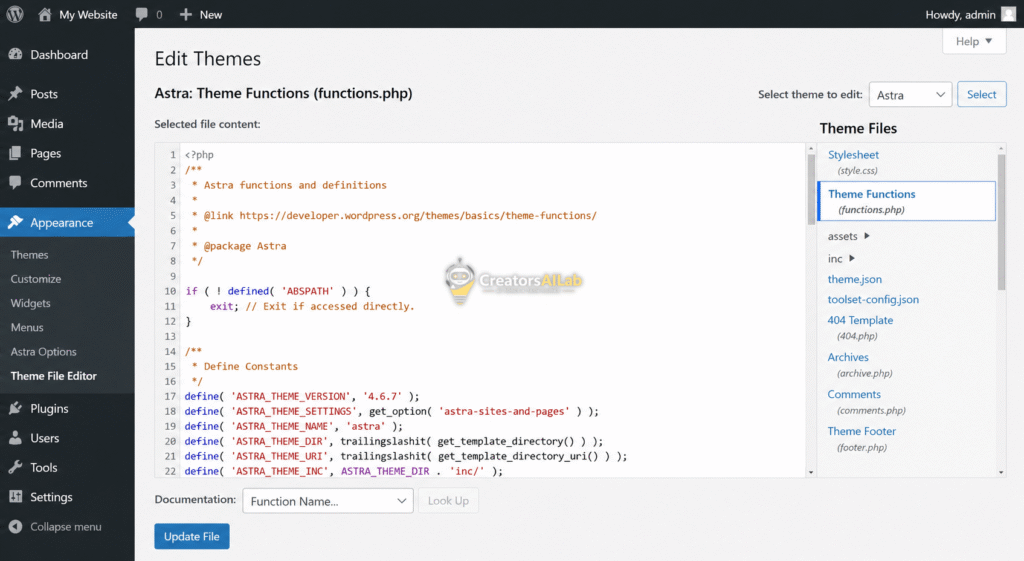
Scroll to the very bottom of the file and paste this exact snippet:
PHP
function allow_ai_custom_mime_types($mimes) {
    $mimes['avif'] = 'image/avif';
    $mimes['json'] = 'application/json';
    return $mimes;
}
add_filter('upload_mimes', 'allow_ai_custom_mime_types');
Save the file. Clear your site cache. You can now freely upload next-gen AI images and raw structured data directly into your media library.
Issue 3: Fix “Discovered – Currently Not Indexed” in Rank Math
You check Google Search Console, expecting to see your new AI articles ranking. Instead, you see a massive spike in grey URLs flagged as “Discovered – currently not indexed”.
Your organic traffic flatlines. Google knows the pages exist, but it refuses to put them in the search results.
Why This Happens
AI bulk publishing creates a massive structural problem: Tag bloat and Auto-Pagination. When you publish 50 articles rapidly, WordPress auto-generates dozens of archive pages (e.g., /category/ai-tools/page/2/).
Googlebot arrives at your site with a limited “crawl budget”. It gets trapped crawling these useless paginated archive pages and RSS feeds instead of your actual articles.
Google’s servers get overloaded, so they simply mark your real content as “Discovered” and walk away. To fix discovered currently not indexed rank math errors, we have to block Googlebot from seeing the junk.
The Rank Math NoIndex Solution
We need to aggressively prune your sitemap. Open your WordPress dashboard and go to Rank Math > Titles & Meta.
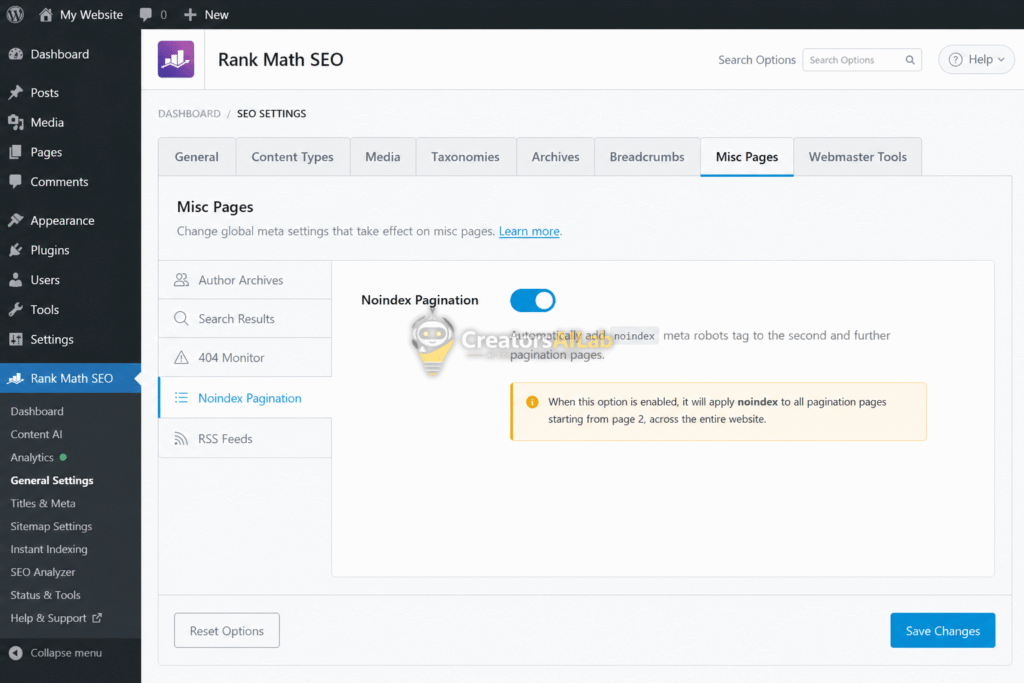
Click on the Misc Pages tab. Find the setting labeled Noindex Paginated Pages and toggle it ON.
Next, toggle ON the Noindex Archive Subpages. This stops Google from wasting crawl budget on /page/2/ and beyond.
Learn more about crawl limits directly from the Google Search Central Crawl Budget Documentation.
Finally, go to Rank Math > Sitemap Settings. Ensure that Tags are completely excluded from the sitemap. You only want Posts and Pages submitted to Google.
The Original Insight: AI Site Diagnostic Checklist
Don’t guess what’s wrong with your backend. Use this quick diagnostic matrix to identify exactly which fix you need to apply right now.
| Diagnostic Symptom | Probable Cause | Immediate Action Required |
| WordPress editor freezes when saving a post | cURL Error 28 (API Timeout) | Increase memory in wp-config.php |
| Cannot use Midjourney images without converting to JPG | Strict MIME Type Policy | Add bypass code to functions.php |
GSC shows hundreds of /page/ URLs | Crawl Budget Exhaustion | Enable Noindex Pagination in Rank Math |
Run this audit monthly. AI tools evolve fast, and keeping your technical backend lean is the only way to ensure maximum ad viewability and fast load times.
Final Thoughts on AI Site Architecture
Treat your technical backend with the same respect you give your content strategy. Bloated code and API errors kill sites faster than bad writing ever will.
Apply these patches today. Watch your dashboard speed up, your images load instantly, and your Search Console errors vanish. Keep your code clean, and the traffic will follow.
FAQs Related How to Fix WordPress AI Blogging Errors
1: What causes cURL error 28 in WordPress?
cURL error 28 happens when your WordPress server’s connection to an external API times out. This is highly common with AI plugins that require more processing time and memory than standard shared hosting provides.
2: How do I safely allow AVIF uploads in WordPress?
You can allow AVIF uploads by adding a custom PHP snippet to your active theme’s functions.php file. Use the upload_mimes filter to add ‘image/avif’ to the allowed file types whitelist.
3: Why does Rank Math show my pages as discovered but not indexed?
This usually indicates an exhausted crawl budget. If your site generates hundreds of paginated archive pages or tags, Googlebot wastes its time crawling those instead of your main articles. Use Rank Math to noindex paginated pages to fix this.
