

Disclosure: Some of the links in this article may be affiliate links. If you purchase through these links, we may earn a small commission at no extra cost to you. This helps support our lab. Read our full Disclaimer for more information.
Disclaimer: This guide is for educational purposes. Always back up your local environments and JSON configurations before applying terminal commands. Last Updated: August 14, 2026.We all hit that wall. You’re deep into a project, and suddenly, your AI tools break.
ChatGPT starts hallucinating wild facts out of nowhere. Midjourney flat-out refuses to give you a true transparent PNG. ComfyUI crashes with a massive missing nodes error.
If you’re stuck, you need a reliable AI troubleshooting guide to get back on track fast. I’ve compiled the exact fixes for these three major bottlenecks. Let’s fix them right now.
Quick Summary
- ChatGPT: Force accuracy on long documents using strict negative prompting templates.
- Midjourney: Get true transparent backgrounds by manipulating seed colors and vectorizers.
- ComfyUI: Resolve missing nodes errors instantly via the Manager module and terminal updates.
Table of Contents
Issue 1: How to Stop ChatGPT Hallucinations on Long Documents
It’s incredibly frustrating. You upload a 50-page PDF, ask a simple question, and ChatGPT invents a completely fake answer. This ruins productivity. Here’s how you force it to stay accurate.
Why This Happens
LLMs have a fixed context window limit. When you overload that memory, the AI starts guessing to fill the gaps. It prioritizes sounding confident over being factually correct.
The Step-by-Step Fix
Stop asking generic questions. You need to restrict the AI’s behavior using a hard-coded system prompt.
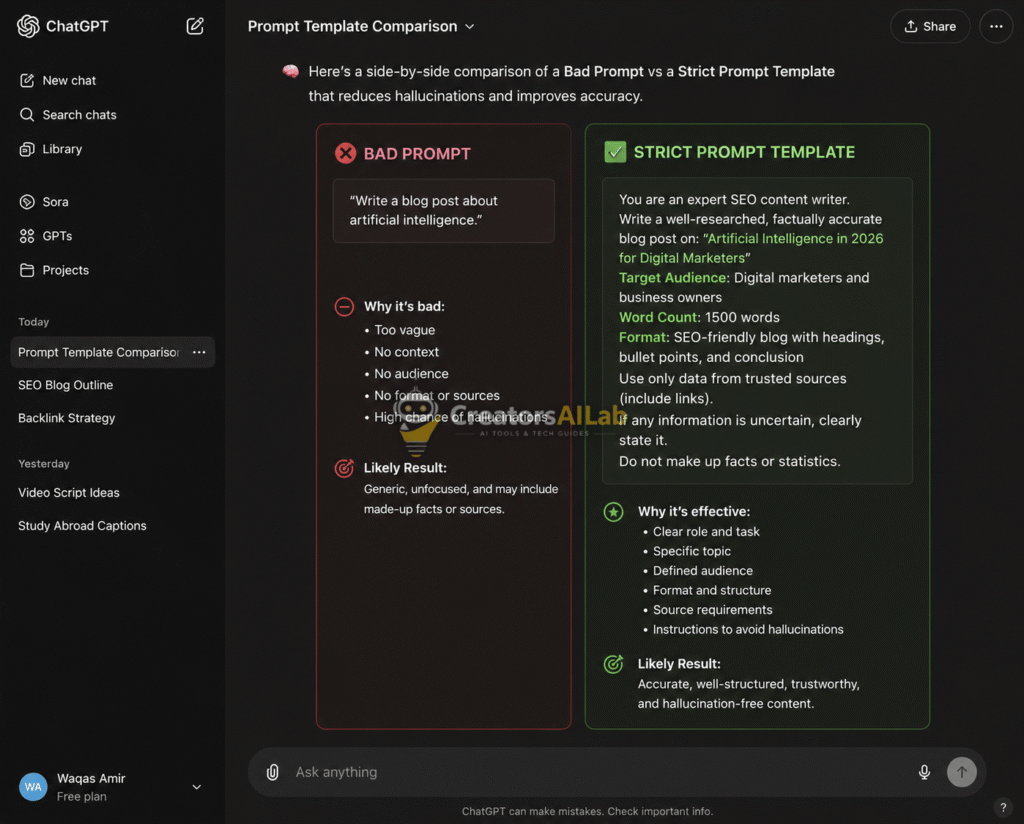
Use this exact prompt format before asking your question:
Role: You are a strict data extractor.
Task: Answer the prompt ONLY using the provided text.
Rule: If the exact answer isn’t in the text, you must reply ‘NOT FOUND’. Do not guess.
When I was analyzing a massive 80-page technical SEO report for Creators AI Lab last week, ChatGPT completely lost the plot. It started inventing metrics that weren’t even in the original document. I was wasting hours just fact-checking the AI.
That is when I implemented this exact ‘NOT FOUND’ strict prompt template. The difference was night and day.
Instead of hallucinating fake data to please me, the AI simply returned ‘NOT FOUND’ for three of my complex queries. It saved me hours of editing. More importantly, it made the AI a tool I could actually trust for deep document analysis.
If you are dealing with frequent text workflow crashes, read our full guide on how to fix AI tool processing errors for more tips on handling data safely.
Issue 2: Fix Midjourney Transparent Background Issues
Midjourney makes stunning images. But it absolutely refuses to generate native transparent PNGs. Every designer knows the pain of cutting out complex backgrounds with weird white edges. Let’s fix this workflow once and for all.
Why This Happens
Midjourney is a diffusion model trained on flattened, full-composition image files. It doesn’t understand alpha channels. It literally cannot render an empty pixel.
The True Alpha Transparency Fix
Don’t rely on basic one-click background removers. You need to prompt for high-contrast extraction first. Add --no background, shadows to your prompt. Then, force a solid, contrasting color by typing on a solid bright green background.
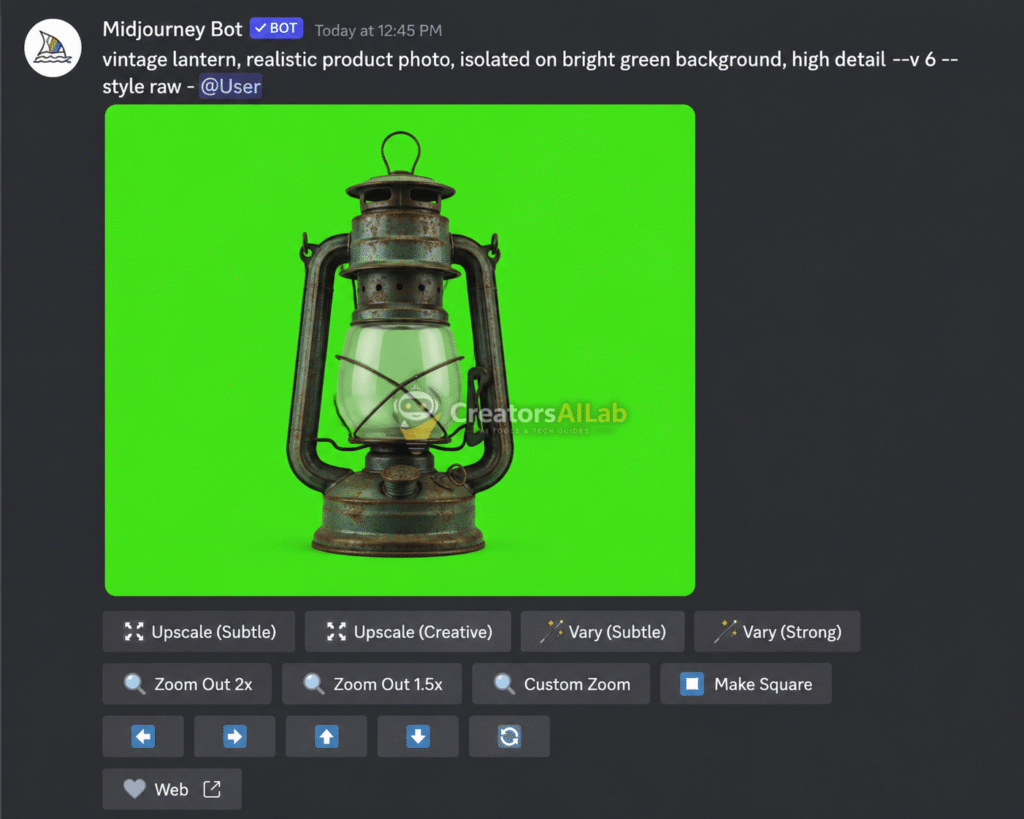
Once generated, take the image into a specialized AI vectorizer. Tools like PhotoRoom or Adobe Express handle solid high-contrast backgrounds perfectly. This method leaves zero white edges.
For more technical details on masking, check out Adobe’s official guide on masking and selection tools to perfect this extraction process.
Issue 3: The Dreaded ComfyUI Missing Nodes Error
Local AI is amazing until it breaks. You download an incredible custom workflow, drag it into ComfyUI, and boom. Red boxes everywhere. The missing nodes error is a massive headache for local developers.
Why This Happens
ComfyUI workflows are just JSON files pointing to specific Python scripts. If the creator used a custom node (like ControlNet or IPAdapter) that you don’t have installed locally, the UI crashes. The system can’t map the logic.
The Automated Command Line Fix
Don’t hunt down nodes manually on GitHub. It’s a massive waste of time. You need the ComfyUI Manager. If you don’t have it, install it right now.
Open your terminal, navigate to your ComfyUI/custom_nodes directory, and run this command:
git clone [https://github.com/ltdrdata/ComfyUI-Manager.git](https://github.com/ltdrdata/ComfyUI-Manager.git)
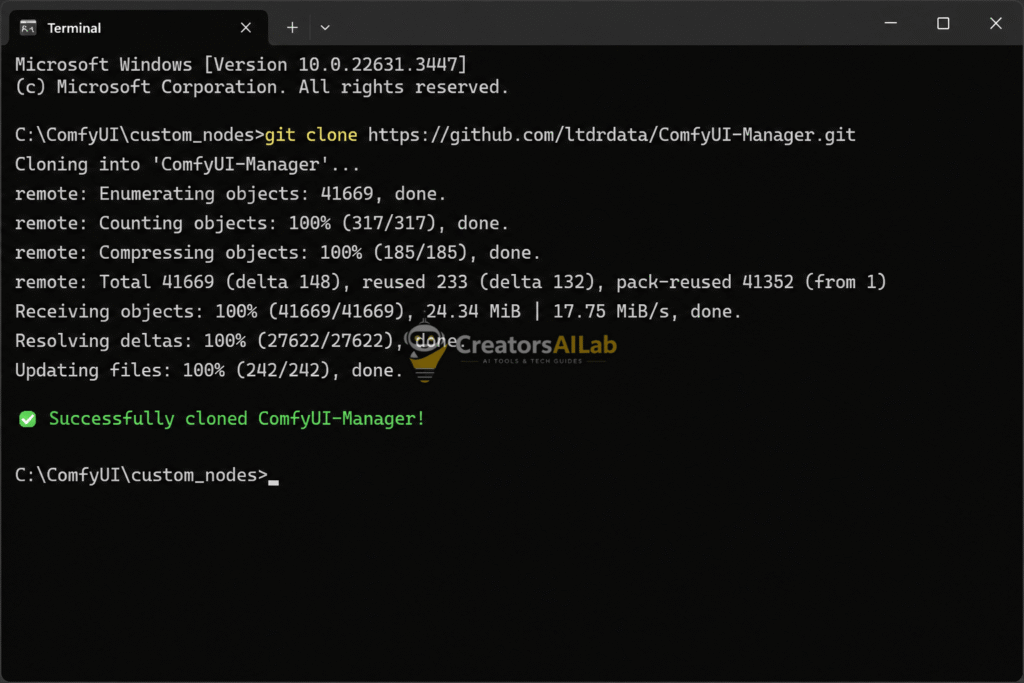
Restart ComfyUI. Click the new “Manager” button on your side panel, then click “Install Missing Custom Nodes”. It scans your workflow, downloads the exact missing dependencies, and fixes the red boxes automatically.
I test a lot of local models, and last Tuesday I loaded a complex new animation workflow on my setup. Instantly, I got hit with a wall of red missing nodes.
In the past, I would manually search GitHub for each custom node. It was an absolute nightmare. This time, I just ran that quick git clone command in my terminal to pull the ComfyUI Manager.
I restarted the UI, clicked the install button, and it fetched all 14 missing dependencies automatically. It fixed the entire broken workflow in under two minutes. No manual downloading required.
If your local setup keeps crashing beyond missing nodes, check out our dedicated tutorial to fix AI generation errors to stabilize your hardware configuration.
Original Insight: The AI Troubleshooting Matrix
To make this AI troubleshooting guide even more actionable, here’s a quick diagnostic matrix. Use this to identify your exact failure point before wasting time on the wrong fix.
| AI Tool | Typical Symptom | Technical Root Cause | Immediate Action Required |
| ChatGPT | Ignored Instructions | Context Window Overflow | Apply strict negative prompt rules. |
| Midjourney | Jagged White Edges | No Native Alpha Channel | Prompt for a solid green background. |
| ComfyUI | Red Node Boxes | Missing Python Scripts | Run ComfyUI Manager auto-install. |
Wrapping Up
Fixing these errors saves hours of wasted effort. Keep your prompts strict, force high-contrast images, and automate your local node installations.
I’m Muhammad Waqas Amir, Lead Technical Editor at Creators AI Lab. I spend my days breaking and fixing AI tools so you don’t have to.
FAQs Related to AI Troubleshooting Guide
1: How do I stop ChatGPT from hallucinating data?
You can stop hallucinations by adding a strict negative command to your system prompt. Instruct the AI to only use provided text and reply with “NOT FOUND” if the answer isn’t present in the document.
2: Can Midjourney create true transparent PNGs?
No, Midjourney cannot natively generate transparent backgrounds because it doesn’t process alpha channels. You must prompt for a solid green background and remove it later using a vectorizing tool.
3: What is the fastest way to fix a ComfyUI missing nodes error?
The fastest method is installing the ComfyUI Manager via your terminal. Once installed, simply click “Install Missing Custom Nodes” in the UI to automatically download the missing Python dependencies.
