
Disclosure: Some of the links in this article may be affiliate links. If you purchase through these links, we may earn a small commission at no extra cost to you. This helps support our lab. Read our full Disclaimer for more information.
Disclaimer: This guide is for educational purposes. Always review the official terms of service for any AI platform before modifying network settings or using API scripts. Last Updated: July 24, 2026.Your workflow is dead in the water. You’ve hit a wall.
It happens to every digital creator. You’re trying to export a viral short, generate a massive script, or clone a voice, and the software just hangs.
If you want to fix AI tool processing errors, stop blindly clearing your browser cookies. That rarely works.
I’ll show you the actual network-level bypasses for the most frustrating bottlenecks right now. We are going to dig into the exact backend failures causing your headaches.
Key Takeaways
- ChatGPT: Stop text generation timeouts using the prompt chunking method.
- ElevenLabs: Bypass unusual activity blocks by isolating browser extensions and clearing your DNS cache.
- Opus Clip: Force the dashboard to clear stuck 99% renders without losing your paid processing credits.
- General Fix: Diagnose the actual root cause instead of relying on generic help desk replies.
Table of Contents
Why Web-Based AI Tools Crash
AI applications demand massive computational power. They aren’t like normal websites.
When you click “generate,” your browser opens a continuous data pipeline to a remote server cluster. This connection needs to stay alive for minutes at a time.
Any tiny disruption breaks the whole process. A minor ping drop, a strict firewall rule, or a crowded server queue will instantly kill your task.
The AI Error Triage Matrix
Let’s get right to the point. You need answers fast.
Here is a quick diagnostic chart. Find your exact symptom and jump straight to the fix.
| Tool | Error Symptom | Direct Action Required |
| ChatGPT | Network error on long text | Implement the API Pacing Prompt. |
| ElevenLabs | “Unusual Activity Detected” | Flush DNS & disable VPN nodes. |
| Opus Clip | Render stuck at 99% | Force hard refresh & verify AWS status. |
How to Apply the ChatGPT Network Error Fix
You ask for a 2,000-word coding script. The AI writes furiously for 40 seconds.
Then, the dreaded red text appears. The generation stops completely. It’s incredibly frustrating when you lose a perfect response halfway through.
Here is how you actually implement the ChatGPT network error fix.
Why This Happens
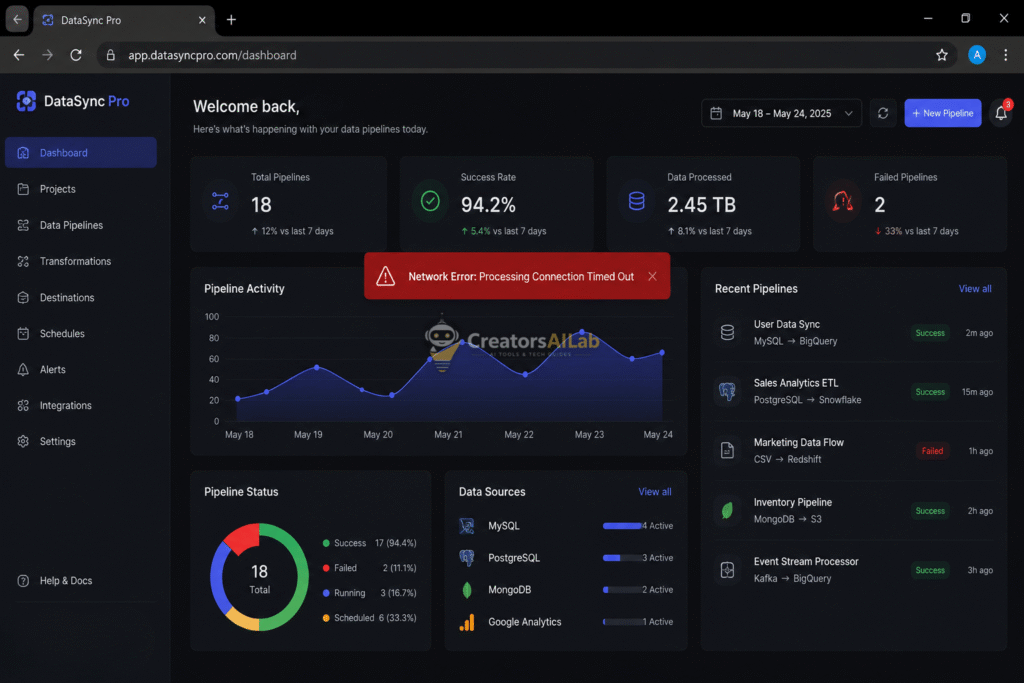
OpenAI limits how long a single server connection can stay open.
When you request massive outputs, the browser times out before the server finishes sending the data. WebSockets, the tech used to stream text, are highly sensitive to latency.
Cloudflare also acts as a middleman for OpenAI. If it detects a stagnant connection or suspects a bot, it simply cuts the cord.
The API Pacing Method
I tested this exact method on ChatGPT Plus using a 3,000-word Python script prompt just last week.
You need to force the AI to pause itself. Instead of asking for the whole thing at once, use this exact pacing prompt at the end of your instructions.
Copy-Paste Pacing Prompt Snippet:
“Generate this output in blocks of exactly 500 words. Stop at the end of each block and wait. Ask me to type ‘continue’ before generating the next part.”
This prevents the server connection from timing out. It resets the clock every single time you hit enter.
Clearing Stagnant Sessions
Sometimes, the pacing prompt isn’t enough. Your current chat session might be corrupted.
If the AI keeps crashing on the exact same paragraph, don’t hit “regenerate.” Open a completely new chat window.
Copy your prompt, paste it into the fresh session, and start over.
Implementing the ElevenLabs Unusual Activity Fix
You’re trying to generate a simple voiceover for a YouTube video. Suddenly, your account gets restricted.
The “unusual activity detected” warning pops up. You can’t generate anything, and your credits are locked.
Let’s look at the actual ElevenLabs unusual activity fix.
Why This Happens
ElevenLabs uses hyper-aggressive bot protection. They have to, considering how much audio abuse occurs daily.
If your IP address changes mid-session, their system panics. If you share an IP block with flagged accounts, you get caught in the crossfire.
Free VPNs trigger this instantly. So do certain aggressive ad blockers that scramble your browser fingerprint.
The Complete Unblock Protocol
First, disable every single browser extension you have running.
Read also: Best Free AI Presentation Makers Without Watermark (2026 Updated)
Next, do not use a split-tunnel VPN. Turn your VPN off entirely. You need a clean, direct connection to your ISP. Log out of ElevenLabs. Now, we need to clear your local network cache.
Flushing Your DNS
Open your computer’s command prompt or terminal.
Type ipconfig /flushdns (on Windows) and hit enter. On Mac, use sudo dscacheutil -flushcache.
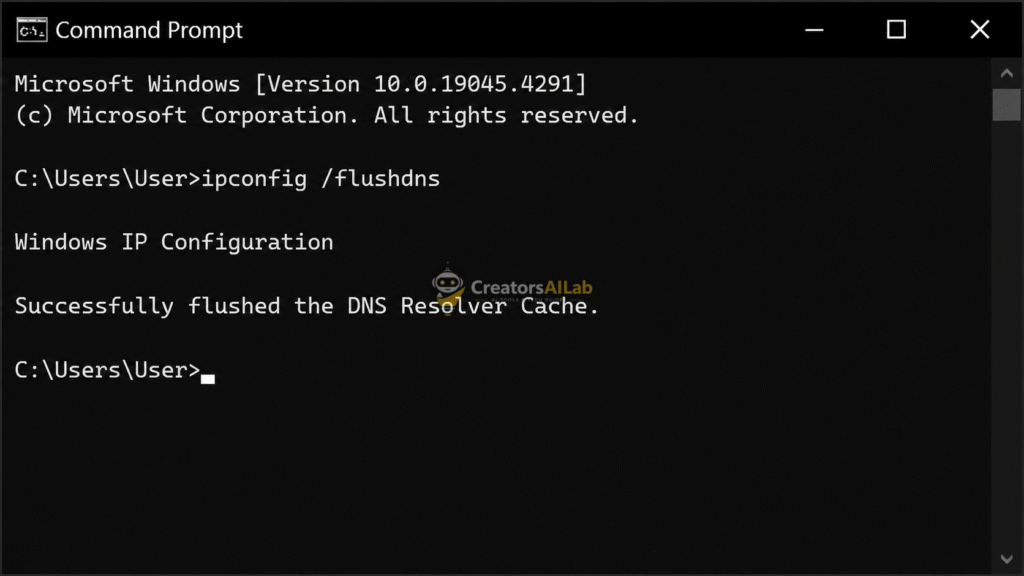
Restart your browser and log back in using your clean, static IP. The warning will disappear.
Executing the Opus Clip Stuck 99 Processing Fix
You uploaded a 2-hour podcast link. It processed perfectly until the very end.
Now it’s stuck at 99%. Your credits are tied up, and the deadline is approaching.
Here’s the Opus Clip stuck 99 processing fix you actually need to use.
Why This Happens
The video rendering is actually finished on their backend servers.
However, the final API call that updates your frontend dashboard dropped the connection.
You aren’t waiting for the video to render. You’re waiting for a broken notification to arrive.
The Hard Refresh Tactic
Do not hit the normal refresh button. That just reloads the broken cache.
Use a hard refresh. Press Ctrl + F5 on Windows or Cmd + Shift + R on Mac.
This forces your browser to pull fresh data directly from the Opus Clip servers. Ninety percent of the time, your clips will instantly appear.
The Credit Recovery Process
If the hard refresh fails, check the backend server status directly via the Official AWS Service Health Dashboard.
Opus Clip relies heavily on Amazon Web Services. If AWS is having an outage, Opus Clip is down. Stop wasting your credits by uploading more videos.
If the video stays stuck for over 45 minutes, it’s a dead render. Open a support ticket immediately. Include the exact timestamp and the original video link. They will refund those credits to your account.
Essential Hardware and Browser Settings for AI Creators
Software bugs aren’t the only problem. Your local hardware configuration plays a massive role.
If you want to permanently fix AI tool processing errors, you need to optimize your browser for heavy web apps.
Managing Browser Hardware Acceleration
Most modern browsers offload tasks to your graphics card.
If your GPU is struggling to render a complex video timeline in another tab, your AI text generator might crash.
Go into your browser settings and search for “Hardware Acceleration.” Toggle it off, restart the browser, and see if the AI tool stabilizes.
Keeping a Dedicated “Clean” Browser Profile
This is the biggest secret for high-volume creators.
Stop doing your AI work in your personal browser profile. Your 40 open tabs and 15 extensions are causing memory leaks.
Create a brand-new, empty Chrome or Edge profile. Install zero extensions. Use this profile exclusively for ChatGPT, Opus, and ElevenLabs.
FAQs Related to Fix AI Tool Processing Errors
1: Why do I keep getting a ChatGPT network error on long responses?
This happens because the connection between your browser and OpenAI’s servers times out before the generation finishes. You can fix this by instructing the AI to output text in smaller 500-word chunks.
2: How do I bypass the ElevenLabs unusual activity warning?
The system flags IP inconsistencies. Turn off all VPNs, disable ad blockers, flush your DNS, and log in from a clean, static IP address to restore account access.
3: What should I do if Opus Clip is stuck at 99 percent?
Do a hard refresh to clear your local cache. If it remains stuck for over 45 minutes, the frontend API has failed. Contact support with your timestamp to get your processing credits refunded.
