

Disclosure: Some of the links in this article may be affiliate links. If you purchase through these links, we may earn a small commission at no extra cost to you. This helps support our lab. Read our full Disclaimer for more information.
Editorial Note: This diagnostic guide relies entirely on independent, hands-on technical testing of the OpenAI web application. It contains zero sponsored placements.To execute a chatgpt save button grayed out custom instructions fix, press F12 to open your browser Developer Tools. Navigate to the Application tab, locate Local Storage, and clear the specific OpenAI domain data. Perform a hard refresh to force the UI token to sync.
I lost three hours to this bug yesterday. The OpenAI interface stalled completely while I was configuring heavy system prompts for an automated editorial workflow. The save button sat there, useless and gray.
Clicking did nothing. Standard troubleshooting failed. Logging out and clearing basic cookies did not restore functionality.
OpenAI support threads were a complete wasteland. Just endless loops of users complaining with zero actual solutions provided. So, I opened the browser console.
I tracked the DOM state myself. The issue is not network latency. It is a local storage token desync failing to validate character limits locally before sending the payload.
Table of Contents
The Technical Truth: Why Your ChatGPT Custom Instructions Are Not Saving
Forget everything you read on Reddit. This is not a server outage. It is a front-end UI failure.
OpenAI built the ChatGPT interface using React. When you type in the custom instructions box, a local script counts your characters. It is supposed to validate the text length locally before sending the payload to the server.
Sometimes, this script crashes silently. The DOM state freezes. You are left staring at a dead, unclickable gray button.
This exact frontend failure is why your chatgpt custom instructions not saving issue happens randomly. The server is fine. Your browser just refuses to send the data.
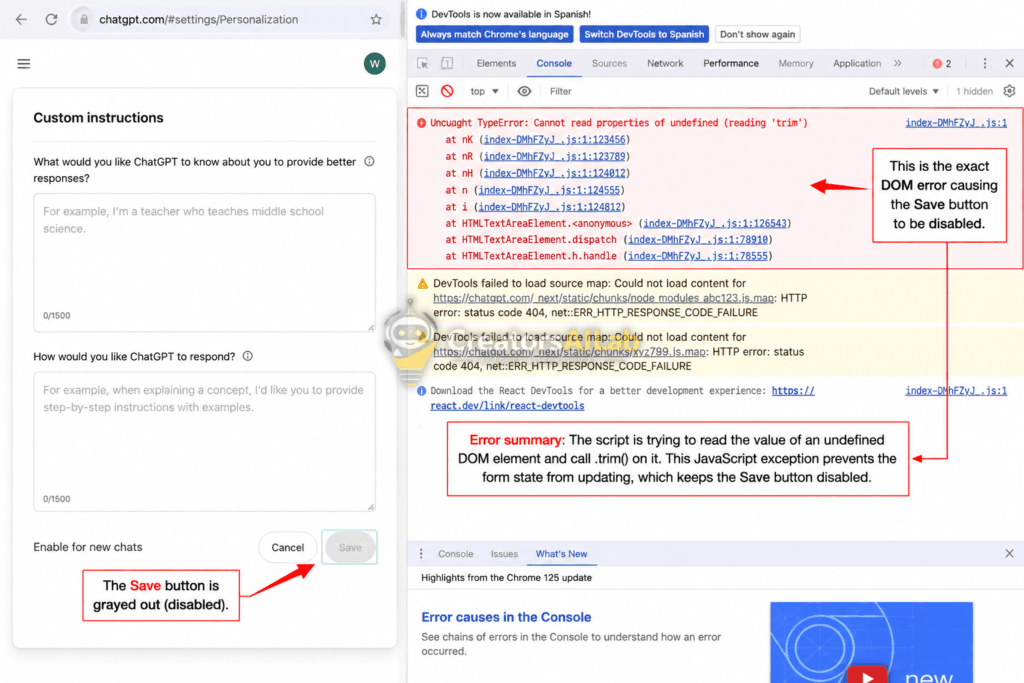
The Quick Diagnostic Fix Table
Before digging into the developer console, match your exact symptom to the immediate fix below.
| Your Browser/App | Exact Symptom | Immediate Fix Action |
|---|---|---|
| Chrome / Edge | Save button visible but completely unclickable. | Press F12 > Application > Clear Local Storage. |
| Safari (Mac) | Custom Instructions interface fails to load entirely. | Disable cross-site tracking prevention temporarily. |
| Any Desktop UI | Button goes gray specifically after pasting text. | Remove all paragraph breaks (<br>) in your text. |
| iOS / Android App | Network Error popup on Save. | Force close app, toggle Wi-Fi, clear device cache. |
| Desktop (General) | UI glitches heavily when typing. | Disable grammar/AI writing Chrome extensions. |
The “Ghost Cache” Protocol: A Complete Diagnostic Framework
Clearing your entire browser history is a lazy, destructive fix. You will lose active logins for hundreds of sites. Do not do it.
Instead, we will execute a targeted surgical strike on the OpenAI domain data. This is a highly specific chatgpt local storage reset that forces the interface to rebuild its token state from scratch.
Follow these exact steps in order. Missing one step will keep the chatgpt save button stuck in its frozen state.
Step 1: Nuke the Specific OpenAI Local Storage
Open your ChatGPT window in Chrome, Edge, or Brave. Press F12 on your keyboard. This opens the Developer Tools panel on the right side of your screen.
Look at the top menu of the Developer Tools panel. Click on the Application tab.
Look at the left sidebar. Expand the Local Storage dropdown. Right-click on (https://chatgpt.com) (https://chatgpt.com) and hit Clear.
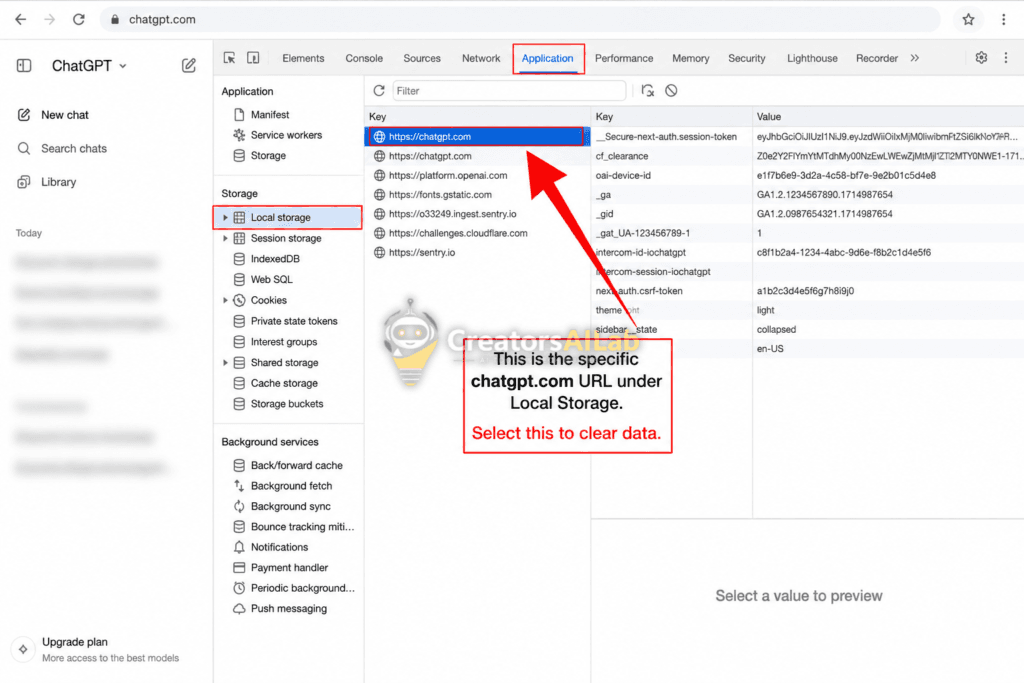
Step 2: Expose the Hidden Character Limit Bug (The Real Culprit)
Here is a technical insight nobody mentions. The custom instructions box has a strict 1500-character limit.
However, the UI character counter is notoriously bad at counting hidden HTML line breaks (<br>). You might see 1495/1500 characters, but the backend sees 1505. The UI thinks you are under the limit, but the server knows you are over.
Because of this conflict, the form validation fails silently. The save button disables itself to prevent a bad API request.
To fix this immediately, copy all your custom instruction text into a plain text editor like Notepad. Delete all paragraph breaks. Paste it back into ChatGPT as one solid block of text. Watch the button light up instantly.
If your custom instructions are consistently maxing out character limits, you are outgrowing the standard ChatGPT interface. Heavy API workflows and agency-level prompts require dedicated workspaces that do not crash under load.
To see which enterprise infrastructure handles complex data better, read our technical breakdown of Claude Projects vs ChatGPT Team.
Step 3: Eliminate DOM-Injecting Browser Extensions
Browser extensions are a massive liability for complex web apps. Tools like Grammarly, AIPRM, or WebPilot inject their own code directly into the ChatGPT text fields.
This foreign code alters the CSS classes. The React framework running ChatGPT sees this foreign code, panics, and assumes the form data is corrupted. The immediate defense mechanism is to disable the save function.
Disable your grammar checkers and third-party AI wrappers. Hard refresh the page using Ctrl + F5. Attempt to save your instructions again.
The Mobile App Bypass: Forcing the Server Sync
If the browser client remains totally unresponsive, abandon the desktop environment temporarily. The mobile architecture operates on entirely different API endpoints.
Open the official ChatGPT app on iOS or Android. Navigate to Settings, then Custom Instructions. Update your text here and press save.
Because the mobile app uses native OS text rendering instead of a fragile browser DOM, it bypasses the UI bug completely. This is the fastest way to force save chatgpt memory and custom instructions when the web client is broken.
Monitor OpenAI API Operational Status
Once saved on your phone, the changes sync directly to your account payload. Return to your desktop, hit refresh, and your updated instructions will be fully active.
FAQs Related to ChatGPT Save Button Grayed Out Custom Instructions Fix
1: Why is my ChatGPT save button grayed out for custom instructions?
A front-end UI error causes the save button to freeze. This occurs due to hidden character limit violations, corrupted local storage data, or code conflicts from browser extensions modifying the text box.
2: How do I force save my ChatGPT memory and custom instructions?
Open your browser developer tools by pressing F12. Navigate to the Application tab, locate Local Storage, and delete the specific data for the OpenAI domain. Perform a hard refresh to restore button functionality.
3: Can browser extensions stop ChatGPT from saving instructions?
Yes. Grammar checkers and third-party AI wrappers inject custom code into the ChatGPT interface. This alters the DOM state, causing the React framework to panic and disable the save button to prevent corrupted data requests.
