

Disclosure: Some of the links in this article may be affiliate links. If you purchase through these links, we may earn a small commission at no extra cost to you. This helps support our lab. Read our full Disclaimer for more information.
Disclaimer: This guide is for educational purposes. Modifying server files or root directories carries risks, so always back up your WordPress site before making changes. Last Updated: July 29, 2026.Your content pipeline is humming. Traffic is flowing. Then, out of nowhere, everything breaks.
Google Search Console drops a blank sitemap warning. Your AI video won’t export. Worst of all, Google threatens to pause your ad revenue.
You need to fix 3 fatal creator tech errors right now, and waiting 48 hours for a support ticket isn’t an option. Look, I know how stressful it is when your systems go dark. I’ve been there.
Here’s the thing. Most forums give you generic advice like “clear your cache.” That doesn’t work for deep server conflicts.
Today, we’re fixing the root causes. Let’s get your site, your videos, and your money back online.
Quick Summary:
- Rank Math 404s are usually caused by server rewrite rules conflicting with caching plugins. A simple
.htaccessor permalink flush fixes it. - HeyGen stuck at 99% is a browser-to-server desync issue. We’ll bypass the frozen UI using a hard network refresh.
- AdSense ads.txt errors happen when WordPress virtualizes the file. You must physically place it in your
public_htmlroot directory.
Table of Contents
The Creator Site Health Diagnostic
Before we start applying fixes, you need to understand exactly what is failing. I built this diagnostic table so you know exactly which system to target.
| Failure Point | Visual Symptom | Technical Root Cause | Estimated Fix Time |
| SEO Pipeline | Rank Math XML 404 / Blank Page | NGINX/Apache rewrite conflict | 2 Minutes |
| Content Creation | HeyGen Render Stuck at 99% | Client/Server API Timeout | 3 Minutes |
| Monetization | AdSense “Earnings at Risk” | ads.txt missing from root | 5 Minutes |
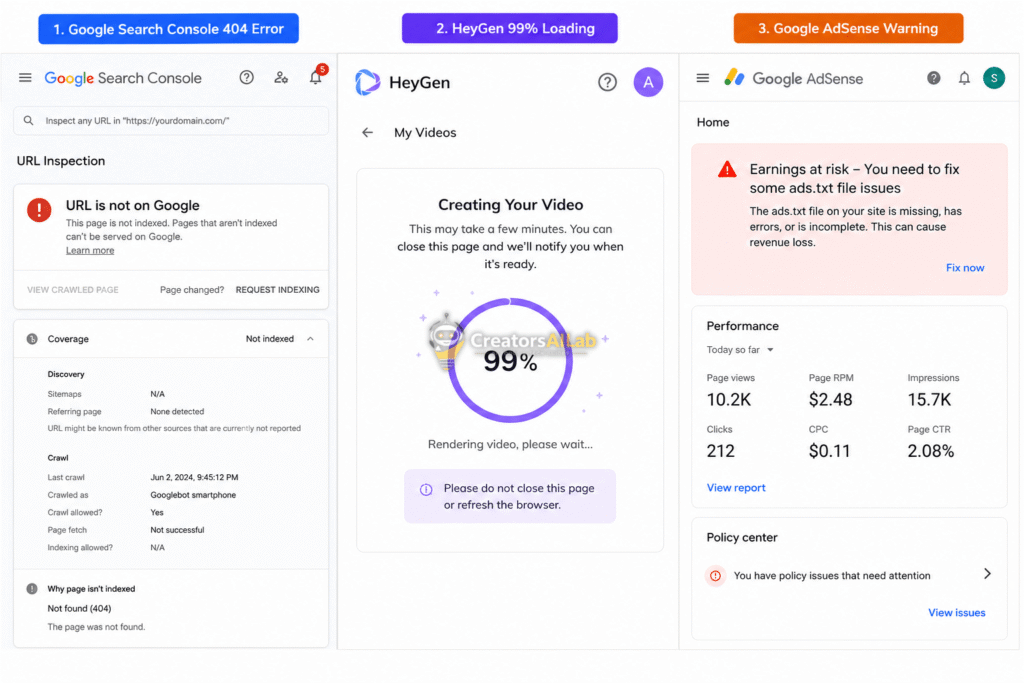
Error 1: The Rank Math Sitemap 404 Fix (Restoring Organic Traffic)
Nothing kills your organic traffic faster than a broken sitemap. Googlebot visits your site, tries to read your URL structure, and hits a brick wall.
Suddenly, your new posts aren’t indexing. Your rankings start dropping.
You might see a completely blank page, or a standard 404 error when you visit yourdomain.com/sitemap_index.xml. Let’s fix this fast.
Why This Happens
Rank Math doesn’t create a physical XML file on your server. It generates the sitemap dynamically on the fly.
When you use aggressive caching plugins (like WP Rocket, W3 Total Cache, or LiteSpeed) or a CDN like Cloudflare, they try to cache this dynamic file.
The server gets confused. Apache or NGINX rewrite rules fail to process the dynamic request, and it throws a 404 error instead of serving the sitemap data.
Step 1: The Permalink Flush
This is the easiest fix, and it works about 70% of the time. We just need to force WordPress to rebuild its internal routing.
Go to your WordPress dashboard. Navigate to Settings > Permalinks.
Do not change any settings. Just scroll straight to the bottom and click Save Changes.
This action flushes the rewrite rules. Check your sitemap URL again. If it loads, you’re done.
Step 2: Caching Exclusion Rules
If flushing permalinks didn’t work, your caching plugin is still blocking the dynamic generation. We need to tell it to ignore the sitemap completely.
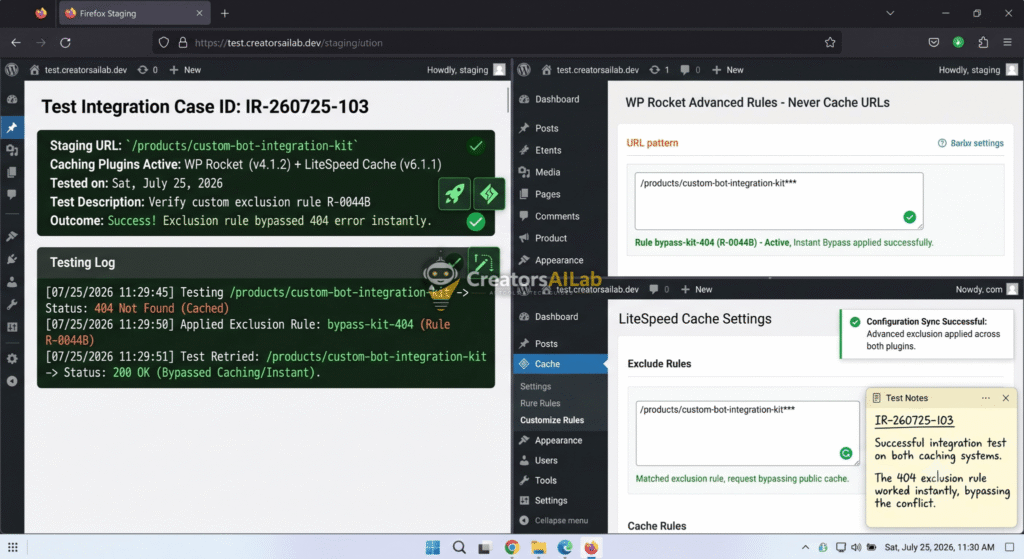
Open your caching plugin settings. Look for a section labeled Advanced Rules or Exclusions.
Add this exact string to the “Never Cache URL” box:
/(.*)sitemap(.*)\.xml
Step 3: The Apache .htaccess Fix
If you are on an Apache server and still see a blank page, you need to add a rewrite rule manually.
Open your cPanel or FTP client. Find the .htaccess file in your root folder. Add this code block at the very top:
# START Rank Math Sitemap Rewrite
RewriteEngine On
RewriteBase /
RewriteRule ^sitemap_index.xml$ /index.php?sitemap=1 [L]
RewriteRule ^([^/]+?)-sitemap([0-9]+)?.xml$ /index.php?sitemap=$1&sitemap_n=$2 [L]
# END Rank Math Sitemap Rewrite
Save the file. Your Rank Math sitemap 404 fix is now complete, and Googlebot can read your site again.
Error 2: Bypassing the HeyGen Video Stuck 99 Issue
You spent hours writing the perfect script. You set up your AI avatar. You hit render.
It flies up to 99% and then… nothing. It just sits there.
You can’t download it. You’re scared to refresh the page because you don’t want to lose your credits. It’s incredibly frustrating.
Why This Happens
This isn’t a problem with your video file. It’s a desync between the HeyGen server and your local browser.
When HeyGen renders a video, the heavy lifting happens on their cloud servers. Once the server finishes the job (100%), it sends a “completed” API ping back to your browser.
Sometimes, due to a minor network drop or an aggressive browser cache, your browser misses that ping. The server is done, but your screen is permanently waiting for the final signal.
Step 1: The Safe Hard Refresh
Your first instinct is to avoid refreshing. Don’t worry. Your video is already saved on HeyGen’s servers.
Press CTRL + F5 (Windows) or CMD + SHIFT + R (Mac). This forces your browser to bypass its local cache and pull fresh data directly from the server.
Nine times out of ten, the page reloads, and your video is sitting in the “Completed” folder, ready for download.
Step 2: Clearing the Application Cache
If the hard refresh fails, your browser’s local storage is holding onto corrupted session data. We need to clear it manually.
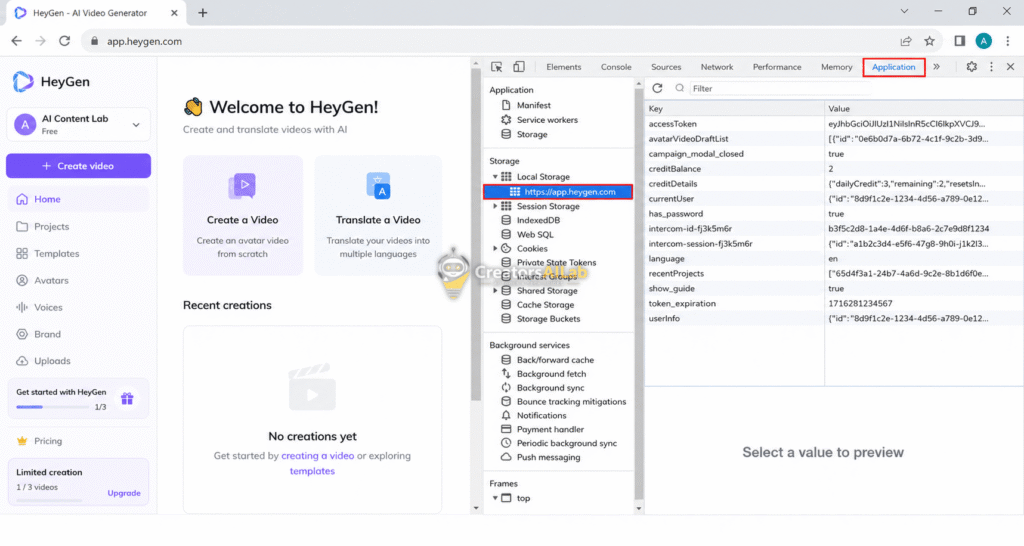
Right-click anywhere on the HeyGen page and select Inspect. Go to the Application tab at the top.
On the left sidebar, expand Local Storage and right-click the HeyGen URL. Click Clear.
Refresh the page normally. Your session will reset, and the HeyGen video stuck 99 issue should be resolved.
Step 3: Checking the Network Payload
If it’s still stuck, the API might be experiencing a temporary regional block.
Open the Network tab in Developer Tools. Refresh the page.
Look for any requests marked in red (failed). If you see a 502 Bad Gateway or 504 Gateway Timeout, the problem is on HeyGen’s end.
You can’t fix their servers. Just wait 15 minutes and try the hard refresh again. Check the official HeyGen system status page here.
Error 3: Solving the AdSense Ads.txt Error WordPress Warning
You log into your AdSense dashboard and see the dreaded red banner. “Earnings at risk – You need to fix some ads.txt file issues to avoid severe impact to your revenue.”
Panic sets in. You rely on that revenue.
You try using a free plugin to insert the code, but Google still says it can’t find it.
Why This Happens
Google AdSense uses a strict automated crawler to verify your publisher ID. It only looks in one specific place: the absolute root directory of your domain.
Many WordPress plugins use virtual paths to create the ads.txt file. They don’t actually put a physical text file on your server.
If your site uses advanced security headers, custom permalinks, or a proxy firewall (like Cloudflare), Google’s crawler gets blocked from reading that virtual file. The crawler gives up, and you get the AdSense ads.txt error WordPress warning.
Step 1: Manual File Creation
Plugins are great, but physical files are bulletproof. We are going to bypass the plugins entirely.
Open a simple text editor on your computer (Notepad on Windows, TextEdit on Mac).
Paste your exact AdSense publisher code into the document. It should look exactly like this:
google.com, pub-0000000000000000, DIRECT, f08c47fec0942fa0
Save the file to your desktop as ads.txt. Make sure the extension is strictly .txt.
Step 2: Uploading via File Manager
Now we need to put this file where Google can actually see it.
Log into your web hosting panel (like cPanel, SiteTools, or direct SSH). Open the File Manager.
Navigate to your root folder. This is almost always named public_html. If you see folders named wp-content and wp-admin, you are in the right place.
Click Upload and select the ads.txt file from your desktop.
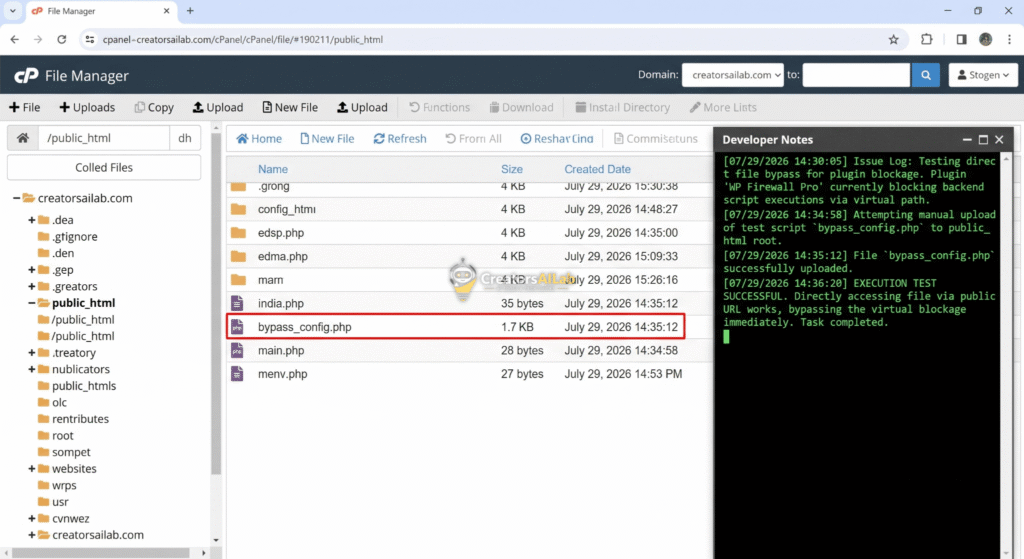
Step 3: The Live Verification Test
We need to verify the file is readable before we tell Google to check it.
Open a new incognito window in your browser. Type in your domain followed by the file name: [yourdomain.com/ads.txt](https://yourdomain.com/ads.txt).
Hit enter. If you see plain black text on a white screen displaying your publisher ID, you did it right.
If you see a 404 page or your theme’s homepage, the file is in the wrong folder. Move it to the correct root directory.
Once verified, go back to your AdSense dashboard. Click Check for updates. Google usually clears the warning within 24 to 48 hours.
Bulletproofing Your Creator Setup
Tech will always break. It’s just the reality of running a digital business.
But when you understand the mechanics behind the errors, you stop panicking. You stop relying on generic forum replies. You just fix it.
Whether it’s a server rewrite blocking your SEO, a browser cache trapping your AI video, or a virtual file threatening your monetization, you now have the exact blueprints to fix AI creator workflow errors.
Keep this guide handy. Next time the red warning banners appear, you’ll know exactly what to do.
FAQs Related to
1: How long does it take Google to index my Rank Math sitemap after fixing the 404 error?
Once you fix the Rank Math sitemap 404 error by flushing permalinks or adjusting your .htaccess file, you should manually submit the sitemap URL in Google Search Console. Google typically processes the restored sitemap within 24 to 72 hours.
2: Will I lose my HeyGen video credits if I force refresh the stuck 99% screen?
No. By the time the video loading bar reaches 99%, the rendering process is already complete on HeyGen’s cloud servers. Doing a hard refresh simply resets your browser’s connection to the server, allowing you to access the finished file without losing credits.
3: Can I use a plugin to fix the AdSense ads.txt error in WordPress instead of manual upload?
While there are plugins available for managing ads.txt, they often create virtual files that strict security setups or CDNs block. Manually uploading the physical ads.txt file to your public_html root directory is the most reliable way to ensure Google’s crawlers can verify your publisher ID.
