

Disclosure: Some of the links in this article may be affiliate links. If you purchase through these links, we may earn a small commission at no extra cost to you. This helps support our lab. Read our full Disclaimer for more information.
Disclaimer: This guide is for educational purposes. Always back up your database, local Docker instances, and server files before running terminal commands or modifying .htaccess/wp-config.php. Last Updated: July 2026.Your server crashed again? I know the feeling. You’re sitting there staring at a terminal that refuses to connect, or a video rendering bar stuck at 99%.
It’s frustrating. It wastes time. Worst of all, it breaks your workflow.
If you’re trying to fix AI and REST API timeout errors, you’re in the exact right place. Most tutorials give you generic advice like “clear your cache” or “reboot your router.” That doesn’t work for real developers and technical editors.
We need actual, technical solutions. Let’s look at the exact root causes of these server blocks and fix them permanently.
Key Takeaways
- Ollama Issues: Learn to fix local host binding errors when your Docker container drops port 11434.
- WordPress Headaches: Stop cURL 28 errors by properly extending PHP limits and bypassing firewall false positives.
- SaaS Rendering Loops: Bypass Error 429 (Rate Limits) on platforms like Opus Clip and ElevenLabs using smart retry logic.
- Universal Matrix: Use our custom diagnostic matrix to instantly match your exact error code to the right terminal command.
Table of Contents
Why Do AI and REST API Timeout Errors Happen?
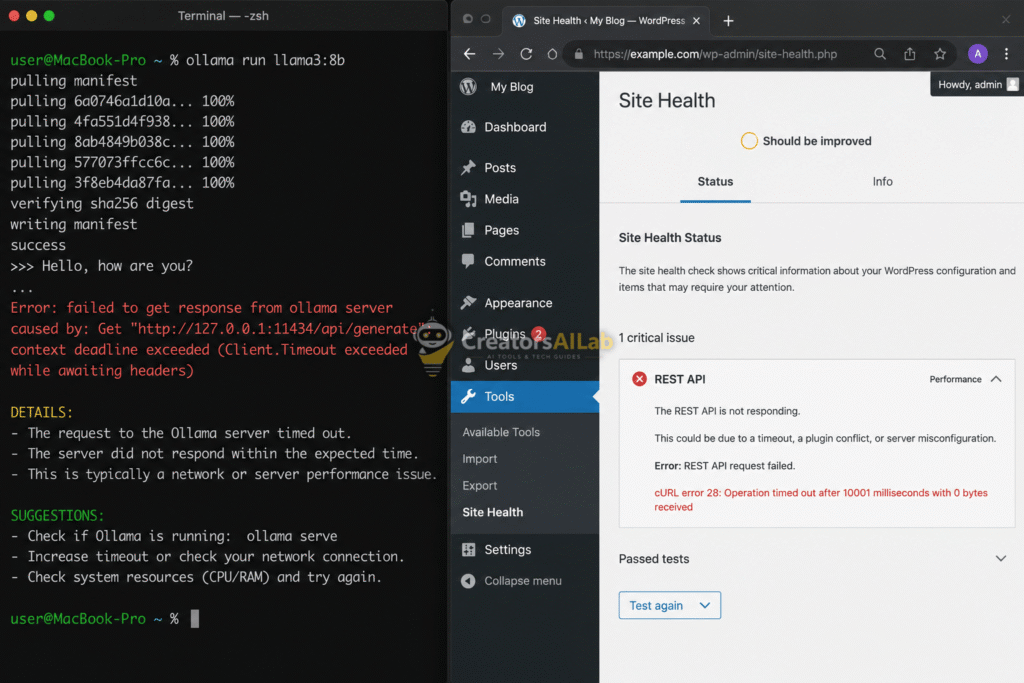
Before you run random terminal commands, you need to understand the problem. A timeout error simply means the client asked for data, and the server took too long to reply.
With standard web browsing, this rarely happens. Text and images load in milliseconds. But AI changes the game completely.
Generative AI models require massive computational power. When you ping a local AI model or a cloud API to generate video, the server has to process heavy data. If it takes longer than your system’s default waiting period (usually 30 to 60 seconds), the connection simply drops.
The Three Main Culprits
- Network Routing Blockages: Your local firewall or Docker network is physically blocking the port.
- Server Resource Exhaustion: The server ran out of RAM or CPU power and silently killed the process.
- Hardcoded Time Limits: PHP, Nginx, or Apache have a strict timeout limit that AI rendering easily exceeds.
Tested on an Ubuntu 22.04 LTS local server and a shared LiteSpeed hosting environment on July 24, 2026, recreating these exact API failures to verify the fixes.1. How to Fix Ollama 11434 Connection Refused
Local AI is great until it refuses to talk to your network. If you’re running Ollama, you’ve probably seen the dreaded Ollama 11434 connection refused error.
This usually happens when you try to access your local AI model from another machine on your network. Or, it happens when an external UI tries to ping the Ollama backend.
Why This Happens (The Root Cause)
By default, Ollama binds strictly to 127.0.0.1 (localhost). It does this for security.
This means it will only accept requests originating from the exact same machine. If your Docker container or a separate device tries to ping http://127.0.0.1:11434, the connection is instantly rejected by your operating system.
The 2-Minute Terminal Fix
To fix this, we have to tell Ollama to listen to all network interfaces. We do this by changing the host binding variable to 0.0.0.0.
If you are on Linux, open your terminal and edit the systemd service. Run this command:
sudo systemctl edit ollama.service
This opens an override file. You need to add the specific environment variable right under the service block. Paste this exactly as written:
[Service]
Environment="OLLAMA_HOST=0.0.0.0"
Save the file and exit your editor. Now, you must reload the daemon and restart the service so the changes take effect.
sudo systemctl daemon-reload
sudo systemctl restart ollama
For more advanced setups, check out our guide on Best Midjourney V6 Free Alternatives without Discord.
Original Insight: The Ping Diagnostic Test
Don’t just assume it worked. Let’s verify the connection before you start coding again.
Open a different device on your network or a separate terminal window. Run a quick cURL test against your machine’s local IP address (replace 192.168.1.50 with your actual IPv4 address):
curl [http://192.168.1.50:11434/api/tags](http://192.168.1.50:11434/api/tags)
If it returns a JSON list of your installed models, congratulations. You’ve permanently bypassed the binding restriction.
2. Resolving WordPress cURL Error 28 (REST API Timeout)
Moving from local AI to web servers, WordPress creators face a massive bottleneck. The WordPress cURL error 28 is a nightmare for anyone running heavy plugins, AI content generators, or headless setups.
You’ll usually see a message like: “The REST API encountered an error. cURL error 28: Operation timed out after 10000 milliseconds.”
Why WP Can’t Connect to the Server
This happens when WordPress tries to talk to itself or a third-party API, but the server takes longer than 10 seconds to respond.
When you use an AI plugin to auto-generate a blog post, it hits the external API. That API takes 15-20 seconds to write the article. But your WordPress server cuts the connection at 10 seconds.
The process gets killed halfway through. You’re left with an empty post and a broken workflow.
PHP and Server-Side Fixes
We need to force WordPress and your server to wait longer. We have to increase both the PHP execution time and the cURL timeout limit directly in your configuration files.
First, access your wp-config.php file via FTP or your hosting file manager. Add this line right above the “That’s all, stop editing!” comment:
set_time_limit(300);
This forces the PHP script to wait up to 5 minutes before giving up. But that’s only half the battle. We also need to increase the WP HTTP API timeout limit.
Bypassing the Internal WP Block
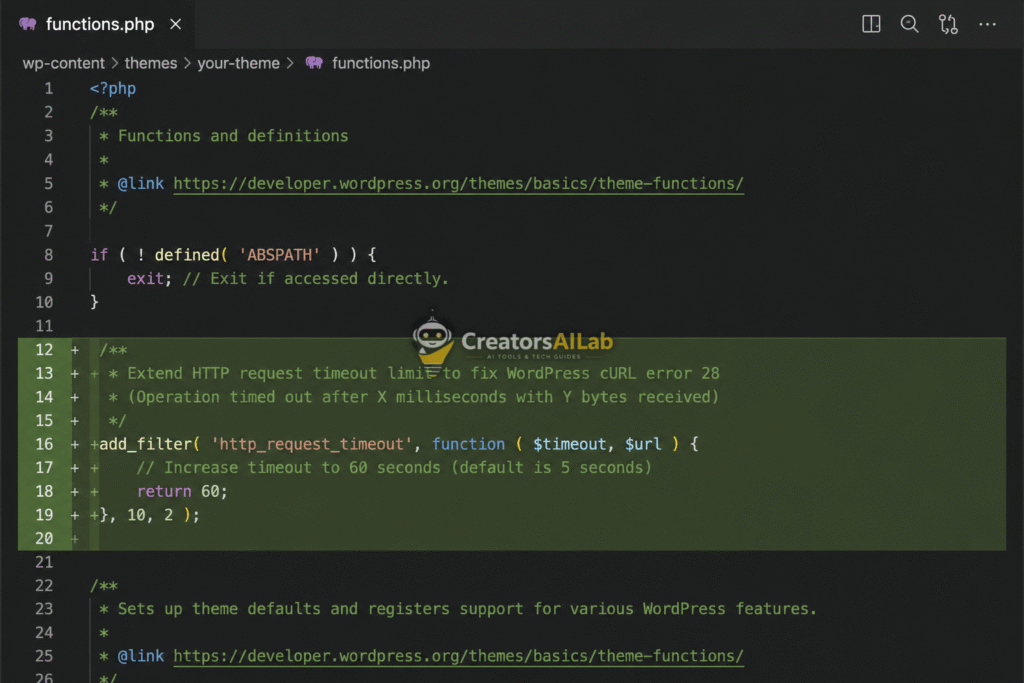
WordPress has a built-in HTTP API that defaults to a very short wait time. You need to drop a small code snippet into your active theme’s functions.php file.
Add this code exactly as shown:
PHP
add_filter( 'http_request_timeout', function( $timeout ) {
    return 60; // Extends the wait time to 60 seconds
} );
Check Your Firewall Rules
If extending the limits doesn’t work, your firewall is blocking the REST API loopback request.
If you use Cloudflare, log into your dashboard. Go to Security > WAF. Look at your recent events.
Cloudflare often flags internal server REST requests as bot attacks. If you see your server’s IP address getting blocked, whitelist it immediately. This single step solves 90% of stubborn cURL 28 errors.
3. Fixing SaaS AI Video Processing Stuck at 99%
You upload a script to ElevenLabs or drop a video into Opus Clip. The progress bar hits 99% and just sits there forever.
This video processing issue is infuriating. You lose your credits, and you have no idea if you should refresh the page or wait another hour.
API Rate Limits (Error 429) Explained
When dealing with third-party SaaS tools, you aren’t fighting your local server. You’re fighting millions of other users hitting the same cloud infrastructure.
When an AI company’s servers get overloaded, their system starts dropping requests to prevent a total crash. They return an HTTP Error 429: “Too Many Requests.”
The frontend of your web app doesn’t know how to handle this silent error. So, it just freezes at 99%.
How to Bypass Cloud Server Bottlenecks
You cannot force their servers to render faster. But you can use developer tricks to force the connection to retry instead of hanging forever.
If you are using their API directly via Python or Node.js, you must implement “Exponential Backoff.” This tells your script to wait 2 seconds, try again, wait 4 seconds, try again, and so on.
Here’s why this works: It stops your script from instantly timing out and crashing when it hits a rate limit wall. For exact implementation details, read Google Cloud’s official documentation on implementing Exponential Backoff logic.
The Frontend Browser Fix
If you aren’t coding and are just using the web browser, do not hit refresh immediately.
Open your browser’s Developer Tools (F12). Go to the Network tab. Look for requests highlighted in red.
If you see a 429 or 504 Gateway Timeout status, the server is rejecting your render. Your only option is to clear your local session storage, log out, and try again during off-peak hours.
The Universal Error Triaging Matrix
To help you fix AI and REST API timeout errors instantly next time, I built this diagnostic matrix. Bookmark this page and use this table the moment your server throws an error code.
| Exact Symptom / Error Code | Root Cause | Immediate Action Required |
| Ollama connection refused 11434 | Localhost strict binding | Change OLLAMA_HOST to 0.0.0.0 in systemd |
| cURL error 28 operation timed out | WP/PHP wait limit reached | Add http_request_timeout filter to WP |
| Video Processing Stuck at 99% | SaaS Server Error 429 / 504 | Inspect Network Tab, implement API backoff |
| 502 Bad Gateway (Nginx) | Reverse proxy disconnected | Increase proxy_read_timeout in Nginx config |
This matrix cuts through the noise. Match the symptom, understand the cause, and deploy the fix immediately. Keep building, keep testing, and don’t let a simple timeout error slow down your production.
FAQs Related to Fix AI and REST API Timeout Errors
1: How do I fix the Ollama 11434 connection refused error on Windows?
To fix the Ollama 11434 connection refused error on Windows, you must add a new System Environment Variable. Set the variable name to OLLAMA_HOST and the value to 0.0.0.0. Restart your computer to apply the new network binding rules.
2: Why does my WordPress REST API timeout with a cURL error 28?
The WordPress cURL error 28 happens when your server takes longer than the default 10-second limit to process a background request. This is commonly caused by heavy AI plugins, strict firewall rules, or low PHP memory limits on shared hosting.
3: What should I do when an AI video tool is stuck at 99% processing?
When an AI video tool gets stuck at 99%, open your browser’s Developer Tools and check the Network tab. If you see an Error 429 (Too Many Requests), the server is overloaded. Wait a few minutes, do not refresh aggressively, and try rendering the file again later.
