
Disclosure: Some of the links in this article may be affiliate links. If you purchase through these links, we may earn a small commission at no extra cost to you. This helps support our lab. Read our full Disclaimer for more information.
Disclaimer: This guide is for educational purposes. Modifying server files like .htaccess or robots.txt can break your website if done incorrectly. Always back up your site before making technical changes. Last Updated: August 10, 2026.2026 broke a lot of things.
Google’s generative AI updates caused chaos. SearchGPT entered the chat. Suddenly, standard blogging tactics stopped working.
If your traffic dropped or your editor keeps crashing, you aren’t alone. I see it every single day. The rules changed overnight, and most webmasters are still playing by the old ones.
To survive, you need specific WordPress technical SEO fixes 2026 that actually address these new threats. You can’t just write good content anymore. Your backend infrastructure has to be flawless.
Today, we fix the three biggest headaches ruining your traffic and workflow. We’ll patch the dreaded Gutenberg JSON error, uncover hidden AI traffic in GA4, and properly configure your crawler settings.
Let’s get to work.
Quick summary
- The JSON Error is usually a caching conflict. You can fix it in 60 seconds by purging LiteSpeed Cache or checking SSL protocols.
- GA4 hides AI traffic. Without a Custom Channel Group, your SearchGPT clicks get dumped into generic “Referral” or “Unassigned” buckets.
- You control the AI scrapers. A properly formatted
AI robots.txt templatedictates exactly which models can read your content and which get blocked.
Table of Contents
Fix 1: The “Updating Failed: Not a Valid JSON Response” Error
You just spent three hours formatting the perfect post. You hit “Update.”
A red banner pops up: “Updating failed. The response is not a valid JSON response.”
It hurts. This error essentially locks you out of saving your own hard work. It’s the most frustrating bug in modern WordPress, but it’s totally fixable.
Why This Happens
WordPress uses the REST API to communicate with the Gutenberg block editor. When you hit save, the editor sends a data packet to your server.
Your server is supposed to reply with a specific JSON-formatted confirmation. But something intercepts that reply.
Usually, a caching plugin, a strict firewall rule, or a mismatched SSL certificate scrambles the server’s response. The editor receives gibberish instead of JSON, panics, and throws the error.
While managing WordPress sites recently, I hit this exact wall. I noticed it happens most often when cache files expire incorrectly. I resolved it fast using the steps below.
Method 1: The LiteSpeed Cache Purge (Quickest Fix)
If you use LiteSpeed Cache, this is your culprit 90% of the time. The REST API gets cached incorrectly.
- Look at your top WordPress admin bar.
- Hover over the LiteSpeed Cache icon.
- Click “Purge All”.
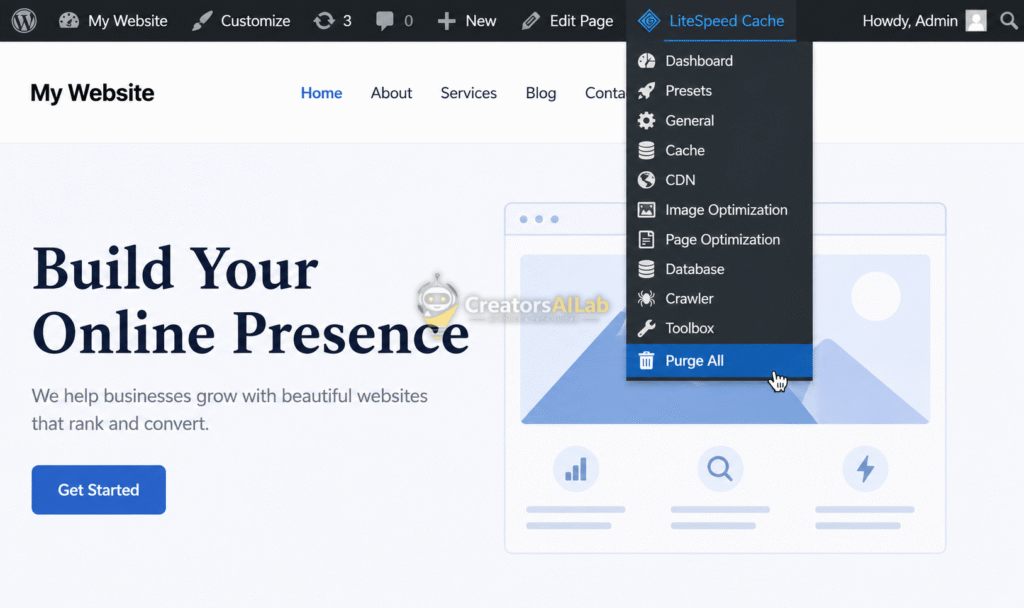
After the purge completes, refresh your post editor. Try saving again. It usually works instantly.
Method 2: Re-Saving Permalinks
Sometimes, your .htaccess file loses its formatting. This breaks the REST API routes.
You don’t need to code to fix this. WordPress can rebuild the file for you automatically.
- Go to Settings > Permalinks in your WordPress dashboard.
- Don’t change any settings.
- Scroll straight to the bottom and click “Save Changes”.
This forces WordPress to flush rewrite rules. It generates a fresh, clean .htaccess file in your root directory.
If you run into automated content issues while editing, check out our guide to fix WordPress AI blogging errors.
Method 3: The Mixed Content SSL Fix
Your site loads over HTTPS, but some old images inside your post load over HTTP.
Modern browsers block this “mixed content” for security. This block also severs the REST API connection, causing the updating failed valid JSON response error.
Check your URL bar. If the padlock icon is broken or shows a warning, you have mixed content. Install the “Really Simple SSL” plugin, activate it, and let it force HTTPS across your entire database.
Fix 2: Tracking SearchGPT & AI Referral Traffic in GA4
You look at your Google Analytics 4 dashboard. Your organic traffic looks stagnant or dropping.
But here’s the thing. You aren’t actually losing traffic. GA4 is just blinding you to it.
People are finding your site through ChatGPT, SearchGPT, and Perplexity. You need a dedicated SearchGPT GA4 tracking setup to see it.
Why This Happens
GA4 uses default channel groupings based on known search engine footprints. Google knows what a click from Bing or Yahoo looks like.
But AI engines don’t use standard search footprints. When a user clicks your link inside a ChatGPT output, the referral data looks weird to GA4.
Because GA4 doesn’t have a default “AI Search” category yet, it dumps this highly valuable traffic into “Unassigned” or generic “Referral”. Your reporting gets ruined.
How to Build the Custom Channel Group
We are going to force GA4 to recognize AI search engines. You need Admin access to do this.
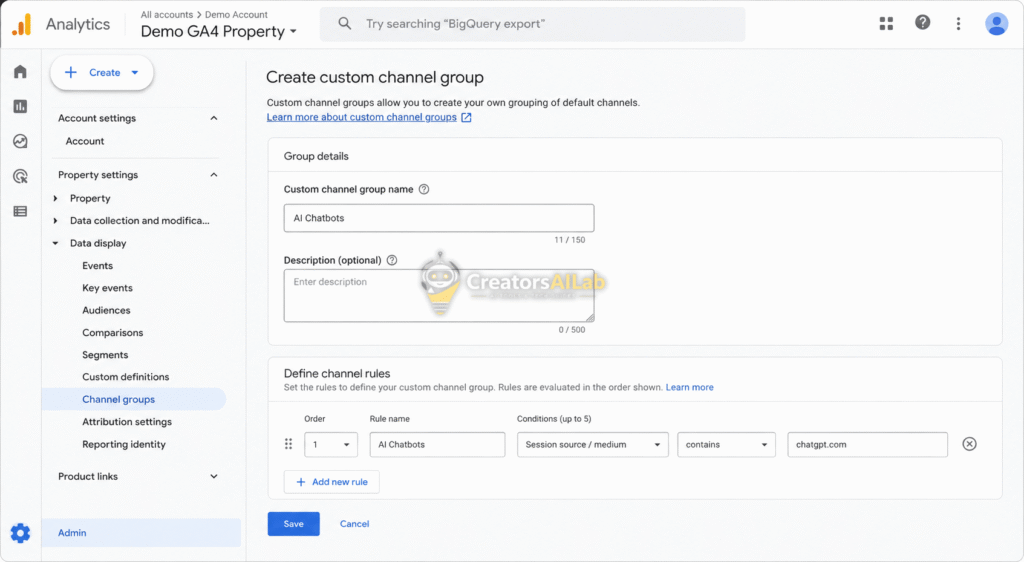
- Open GA4 and click the Admin gear icon in the bottom left.
- Under Data display, click on Channel groups.
- Click Create new channel group. Name it “2026 AI Search Engine Fix”.
- Click Add new channel. Name this channel “AI Chatbots”.
Original Insight: The 2026 Regex Cheat Sheet
Now you must tell GA4 exactly what to look for.
Under the conditions for your new channel, select “Source” from the first dropdown. Choose “matches regex” from the second dropdown.
Paste this exact string into the value box:
chatgpt\.com|perplexity\.ai|claude\.ai|poe\.com
Click save. Moving forward, GA4 will catch any click originating from these AI platforms and neatly organize them under your “AI Chatbots” channel.
If you get stuck on the formulas, check out Google’s official documentation on GA4 regex formatting.
Fix 3: Optimizing Your robots.txt for AI Crawlers
AI companies are scraping your website right now.
They use your hard work to train their massive language models. Sometimes they cite you. Often, they don’t.
If you want to control who gets your data, you need a strict AI robots.txt template. It acts as a bouncer for your website.
Why This Happens
Web crawlers are automated bots. Googlebot reads your site to rank it in search.
AI bots read your site to consume data. By default, WordPress allows all bots to scrape everything.
If a bot pulls too much data at once, it spikes your server CPU. Your site slows down for real human visitors. You must explicitly tell these bots to back off.
2026 AI Bot Directory (Who to Block and Allow)
Before you edit your settings, you need to know who is knocking on your server’s door. Here is a quick reference table of the major bots crawling the web today:
| Bot Name | Owned By | Main Purpose | Action Recommended |
| OAI-SearchBot | OpenAI | SearchGPT Live Citations | Allow (Brings Traffic) |
| GPTBot | OpenAI | Model Training / Scraping | Block (Takes your data) |
| ClaudeBot | Anthropic | Model Training / Scraping | Block (Takes your data) |
| PerplexityBot | Perplexity AI | Live Search Answers | Allow (Brings Traffic) |
| CCBot | Common Crawl | Open Source Scraping | Block (Heavy server load) |
How to Edit robots.txt using Rank Math
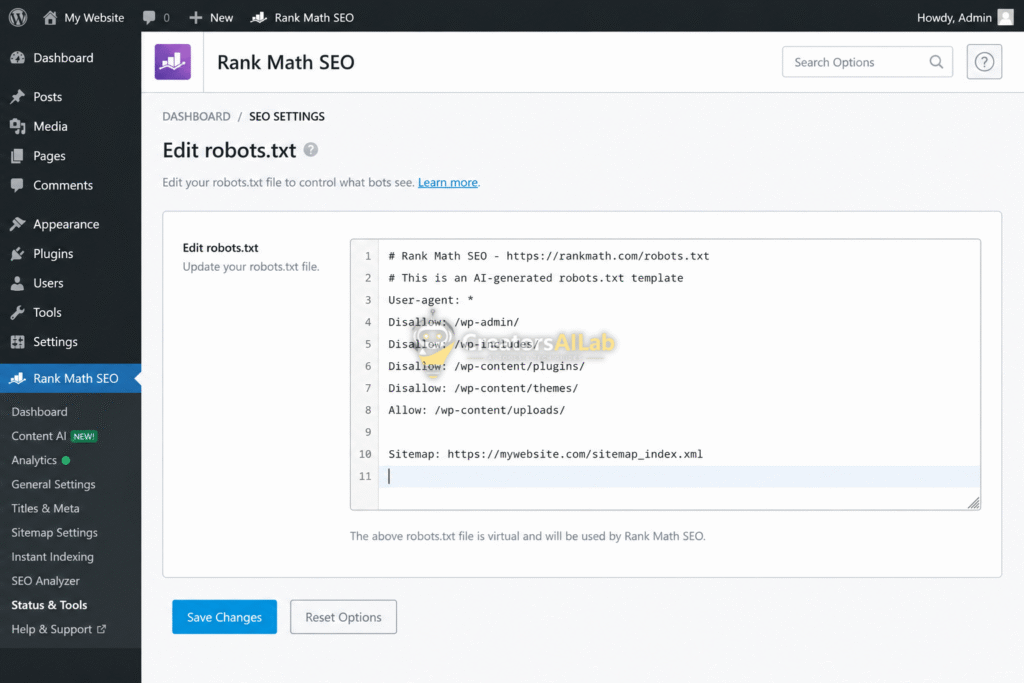
You don’t need FTP access to change this file. You can do it right inside your WordPress dashboard using Rank Math SEO.
As the Lead Technical Editor here at Creators AI Lab, I monitor our server logs closely. Recently, I noticed a massive CPU spike from an aggressive AI scraper. I applied the exact template below via Rank Math, and our server load dropped immediately.
- Navigate to Rank Math SEO > General Settings.
- Click on the Edit robots.txt tab.
- You will see a text box containing your current rules.
The Ultimate AI Block/Allow Template
Here is the exact code I use.
This setup allows Google to crawl normally. It allows SearchGPT to read your site for citations, but it blocks aggressive data-mining bots.
Copy and paste this below your existing WordPress rules:
# Allow OpenAI Search (SearchGPT) for citations
User-agent: OAI-SearchBot
Allow: /

# Block OpenAI training scrapers
User-agent: GPTBot
Disallow: /

# Block Anthropic training scrapers
User-agent: ClaudeBot
Disallow: /

# Block Common Crawl (used by many open-source AIs)
User-agent: CCBot
Disallow: /
Hit save. Your content is now protected from unauthorized AI training scraping, while keeping the door open for actual search referral traffic.
For more backend and API troubleshooting, read our complete guide to fix ChatGPT JSON schema errors.
Final Thoughts on Technical SEO
Ignoring your backend infrastructure is a massive mistake.
The web is shifting fast. Implementing these WordPress technical SEO fixes 2026 keeps you ahead of your competitors.
Fix your JSON errors so you can publish without friction. Track your AI traffic accurately so you know what content actually works. Lock down your robots.txt to protect your server and intellectual property.
Take 15 minutes today. Apply these three fixes. Your future traffic will thank you.
I’m Muhammad Waqas Amir, Lead Technical Editor and Head of Content for Creators AI Lab. I spend my days pushing the limits of WordPress and AI so I can teach you how to optimize it. Keep testing.
FAQs Related to WordPress Technical SEO Fixes 2026
1: How do I test if my WordPress JSON error is permanently fixed?
To test the JSON error fix, open a draft post in the Gutenberg editor. Type a test sentence and wait 30 seconds for the WordPress auto-save feature to trigger. If you don’t see the red “updating failed valid JSON response” banner at the top, and manual saves work instantly, the conflict is permanently resolved.
2: Does blocking GPTBot in robots.txt hurt my Google SEO rankings?
No. Blocking AI training scrapers like GPTBot or ClaudeBot has zero impact on your Google search rankings. Google uses a completely different crawler (Googlebot) for its search indexing. Adding an AI robots.txt template only prevents unauthorized data scraping, keeping your server resources free for real users.
3: Why doesn’t GA4 track ChatGPT traffic automatically?
GA4 relies on standard HTTP referrer headers to categorize traffic. Desktop AI chat applications and mobile AI apps often strip these headers for privacy reasons, making the traffic appear direct or unassigned. Setting up SearchGPT GA4 tracking via custom channel groups uses regex to manually catch and organize the AI footprints that do slip through.
