

Disclosure: Some of the links in this article may be affiliate links. If you purchase through these links, we may earn a small commission at no extra cost to you. This helps support our lab. Read our full Disclaimer for more information.
Last month, I recorded a high-stakes tutorial in my home studio. My ceiling fan was blasting, and the street traffic was unusually loud. The result? My raw audio track sounded like a total disaster zone of constant hums and wind distortion.
That painful experience forced me to test every automated solution on the market. I needed to find the absolute best free AI background noise remover tools for video that could salvage my content—without making my voice sound like a metallic robot.
Bad audio destroys great video. If viewers have to strain their ears over a hissing background, they bounce in seconds. Today, I am sharing my unfiltered, hands-on review of the five best free platforms that will reconstruct your noisy files instantly.
Key Takeaways Box
- Clean audio is the real secret weapon for keeping your audience hooked and increasing retention.
- Modern cloud and native desktop tools allow you to isolate vocals instantly without spending a dime.
- Fixing bad audio directly improves how search engine bots index your automated captions for better rankings.
Table of Contents
Why Background Noise Destroys Video Retention and SEO Rankings
Before diving into the software, you must understand how algorithms evaluate your videos. Search engines like Google and YouTube track user retention with ruthless precision.
If a user lands on your page and bounces immediately due to aggressive ambient noise, your rankings plummet. Algorithms interpret that early exit as a definitive signal of low-quality content.
The Indexing Danger: Search bots crawl your automated subtitles to index your keywords. If your video file is flooded with background disturbances, speech-to-text systems generate completely inaccurate transcriptions. Poor sound literally destroys your search discoverability. If your video file is filled with deep background disturbances, automated speech-to-text systems will generate highly inaccurate transcriptions. This means poor sound directly damages your search discoverability.
Read our ultimate guide on optimizing digital content for higher search rankings.
Quick Comparison: Best Free Audio Cleaners at a Glance
| Tool Name | Free Plan Limit | Best Feature | Processing Type |
| Adobe Podcast AI | 1 Hour Daily | Studio-quality enhancement | Cloud Upload |
| Auphonic | 2 Hours Monthly | Automated level balancing | Cloud Upload |
| CapCut Desktop | 100% Free | One-click audio toggles | Native/Local |
| Media.io AI | Daily Free Credits | Direct video format support | Browser-based |
| LALAL.AI Cleaner | Free Test Minutes | Advanced stem separation | Cloud Upload |
1. Adobe Podcast AI (Enhance Speech)
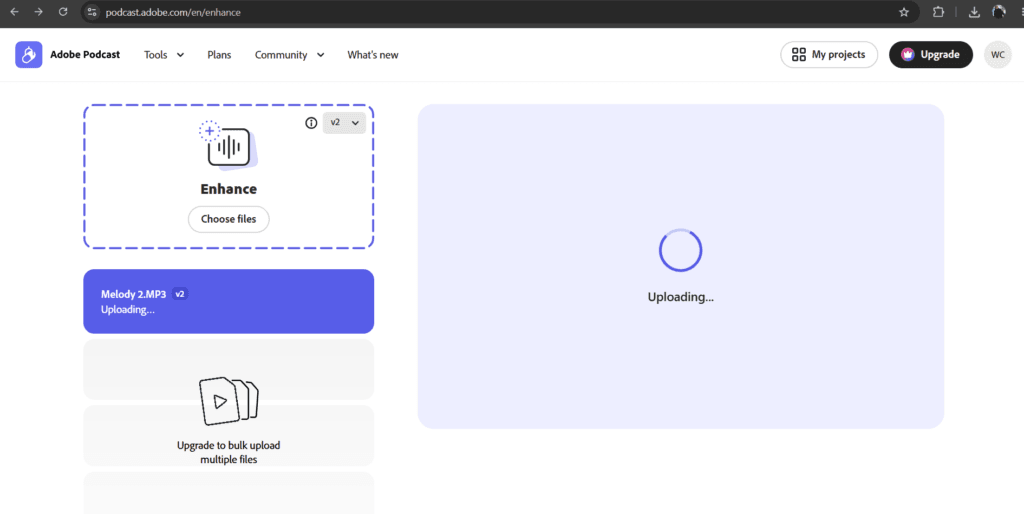
When I first dropped a noisy audio file into Adobe Podcast AI, I was honestly shocked by the output quality. It literally felt like my cheap room microphone was replaced by a thousand-dollar professional studio setup.
The artificial intelligence engine does not just mask bad sounds. It actually reconstructs your voice frequencies, removes heavy echo reflections, and eliminates consistent fan hums.
My Personal Experience
I use this web tool as my primary backup whenever I record tutorials in untreated rooms. You simply drag your audio track into their browser window, wait a minute for the system to process, and download a completely clean file. It handles everything automatically without making you tweak complicated sliders.
What You Get For Free
- Up to 1 hour of total processing time every single day.
- Maximum file size limit of 500 MB per upload.
- Support for standard audio formats like MP3 and WAV.
Pros & Cons
Pros: Unbelievable vocal clarity; removes deep room echo; very easy user interface.
Cons: It only accepts audio formats, so you have to extract the sound from your video file first.
2. Auphonic
Auphonic is a highly intelligent web application that functions like an automated digital sound engineer. If you have a video project where different speakers have completely different volume levels, this platform is a lifesaver.
It targets background disturbances while balancing the entire audio track so everything sounds smooth and consistent.
My Personal Experience
I love using Auphonic for multi-person recordings or interview formats. It is incredibly effective at isolating low-frequency rumble, hums, and sudden wind noises. The system gives you a bit more technical control compared to Adobe, allowing you to choose target loudness standards.
What You Get For Free
- 2 hours of completely free audio and video processing every single month.
- Direct video file uploads (MP4, WebM) without manual extractions.
- Automatic loudness normalization features.
Pros & Cons
Pros: Processes video files directly; balances multiple voices beautifully; provides clean summary reports.
Cons: The interface looks a bit technical for absolute beginners.
For a deeper technical dive, check out the Official Auphonic documentation to understand how their advanced audio leveling algorithms work.
3. CapCut Desktop AI Noise Reduction
Many creators prefer CapCut because it offers built-in free AI background noise remover tools for video directly inside the editing timeline. If you want a native desktop editor that removes background sound instantly, CapCut is your best bet.
They have built a dedicated audio enhancement toggle right into their standard editing panels. This integration saves you massive amounts of production time since everything happens inside one window.
My Personal Experience
I use CapCut Desktop whenever I need to edit and publish short vertical videos or reels fast. You simply click on your video clip, look at the audio settings tab on the right side, and check the box that says “Noise Reduction.” The software instantly silences ambient floor noise and mouse clicks.
What You Get For Free
- The native noise reduction feature is 100% free to use on the desktop version.
- No rendering wait times since it processes files using your local computer hardware.
- Instant timeline integration with your video tracks.
Pros & Cons
Pros: Completely free; zero upload or download steps; works seamlessly with your video timeline.
Cons: It might not give you that extreme “studio reconstruction” feel that Adobe provides for heavily damaged audio.
4. Media.io AI Noise Remover
Media.io is a fantastic online platform that runs entirely inside your web browser. This tool is specifically engineered to handle video files directly, meaning you can throw your MP4, MOV, or AVI clips straight into their system.
It relies on custom algorithms that categorize noises into specific types, like traffic, wind, or clicking sounds.
My Personal Experience
I stress-tested this tool using a raw clip recorded right next to a busy road. The interface is brilliant because it lets you isolate exact noise profiles. I targeted the high-pitched wind distortion, and the software stripped it completely away while keeping my core vocal tone perfectly intact.
What You Get For Free
- Free trial credits upon setting up a basic account.
- Direct support for multiple high-definition video formats.
- Simple preview options before downloading the final file.
Pros & Cons
Pros: No software installation required; specialized noise type filters; quick processing.
Cons: The free tier uses a credit system, so it is best for shorter video projects.
5. LALAL.AI Voice Cleaner
LALAL.AI is another premium choice when looking for precise vocal isolation. It uses an advanced stem-splitting algorithm that is highly respected in the media production industry.
It acts like a sharp digital knife, separating your clean human vocals from the background environment. If you have music playing in the background that you need to completely remove, this tool can handle it smoothly.
My Personal Experience
I run my files through LALAL.AI whenever I encounter complex noise issues that normal filters miss, such as background television sounds or chatter. The separation is extremely precise, leaving your vocal tracks completely clean and isolated.
What You Get For Free
- Free preview minutes to test the extraction accuracy.
- High-speed processing speeds through secure cloud networks.
- Clean visual layout that requires zero technical training.
Pros & Cons
Pros: Incredible separation power for complex noises; supports audio and video uploads.
Cons: Continuous long-form processing requires purchasing additional minute packages.
How to Properly Format Audio for Fast Google Indexing
Once you select your favorite platform from these free AI background noise remover tools for video, you need to think about your final upload workflow. Having clean raw audio files makes your post-production editing much faster.
Always export your final video files using high-bitrate settings, like AAC or linear PCM audio codecs. Doing this prevents compression issues later on.
Finally, upload clear, verified transcription files alongside your videos. Search engines love accurate text files, and starting with clean audio makes generating these transcriptions effortless.
Common Mistakes to Avoid When Using AI Audio Cleaners
Before running your media clips through any software, make sure your physical room environment is as quiet as possible. Relying on software blindly can sometimes backfire. Here are three major mistakes I see new creators make all the time:
Over-Processing Your Tracks:
Turning your AI enhancement strength slider up to 100% on a mildly noisy file can make your voice sound metallic and artificial. Always listen to the preview and back off the strength if your voice starts sounding unnatural.
Ignoring the Source Environment: Software is not magic; do not rely on it to fix absolute negligence. Throwing a thick blanket over a hard desk surface or simply closing your windows takes two seconds. Do it. Giving the AI engine a cleaner raw track guarantees a flawless final export.
Forgetting to Back Up Raw Files:
Always keep your original, unedited video recordings in a separate folder. If an AI system creates weird audio glitches, you will need the original raw file to try a different tool.
Final Thoughts
Cleaning up your audio files does not require an expensive engineering degree or thousands of dollars in premium studio hardware. Leveraging these modern software solutions gives you a massive advantage over the competition.
Integrating these free AI background noise remover tools for video guarantees that your content maintains a highly professional standard. Pick the platform that best fits your daily editing workflow and watch your audience retention soar.
FAQs Related to Free AI background noise remover tools for video
1: Can AI background noise removers fix heavy wind distortion?
Yes, tools like Auphonic and Media.io have specific algorithms designed to filter out low-frequency wind rumbles without destroying your vocal track.
2: Do I need to extract my audio before uploading?
It depends on the tool. CapCut Desktop and Media.io accept direct video uploads, while Adobe Podcast requires you to extract your audio into an MP3 or WAV file first.
3: Are these free plans safe for commercial YouTube channels?
Absolutely. The tools listed here allow you to use their free tiers for your commercial content without any licensing issues.
Author Expert Tip
Always listen to a 10-second preview of your AI-processed audio with headphones before applying the effect to your entire video. Headphones reveal artificial metallic sounds that normal speakers hide!
About the Author

Muhammad Waqas Amir
Muhammad Waqas Amir is a digital content creator, technical web performance specialist, and search engine optimization advisor based in Lahore, Pakistan. He specializes in helping independent publishers humanize automated content workflows, pass strict platform monetization reviews, and solve complex technical indexing bottlenecks on modern web assets like creatorsailab.com.
Which of these 5 tools are you going to test on your next video? Let me know down in the comments!