

Disclosure: Some of the links in this article may be affiliate links. If you purchase through these links, we may earn a small commission at no extra cost to you. This helps support our lab. Read our full Disclaimer for more information.
Disclaimer: This guide is for educational purposes. Modifying server cache settings and API parameters can temporarily affect site performance. Always back up your database before making backend changes. Last Updated: August 7, 2026.AI tools fail. A lot.
You’re likely losing hours staring at frozen loading bars. Your AI publisher tech stack errors aren’t just annoying. They are draining your AdSense revenue and killing your output.
I see creators give up daily. Why? Because they blame themselves instead of the software. Let’s fix that right now.
Quick Summary
- Fix AI render freeze bugs instantly without losing your paid credits.
- Diagnose AI API error codes like 429 and 409 using precise developer commands.
- Resolve the LiteSpeed Rank Math conflict that blocks Google from indexing your posts.
- Audit your pipeline to stop revenue leaks before they happen.
Table of Contents
The Creator’s Diagnostic Audit
Take five seconds to check your current tech stack health. If you answer “Yes” to any of these, you need the fixes below.
| Pipeline Issue | Symptoms You Are Seeing | Impact on Your Blog |
| Media Generation | HeyGen/Opus Clip gets stuck at 99% rendering. | Wasted paid credits and lost time. |
| Automation | Bulk text scripts fail with red 409 or 429 warnings. | Complete workflow breakdown. |
| SEO Indexing | Google Search Console says “Couldn’t fetch sitemap.” | Zero organic traffic and AdSense loss. |
How Technical Bottlenecks Drain Your AI Publishing Revenue
You build a process. It works flawlessly for a week. Then everything breaks.
Here’s the thing. Most creators don’t realize their tools are actively fighting each other in the background. Browser sessions desync. Caching plugins overwrite SEO settings.
I recently audited these exact errors on my own setup, testing across both my iPhone 16 Pro Max and desktop environment during a high-volume generation run in August 2026.
When your tools crash, you stop publishing. When you stop publishing, your traffic drops. You need a stable environment.
Let’s dig into the exact issues breaking your system.
Error 1: The Credit Killer – AI Video Render Freezes at 99%
This is the absolute worst. You wait twenty minutes for a heavy AI video generation to process.
It hits 99%. Then it stops dead. It just hangs there.
Do not hit refresh. I repeat, do not refresh the page. If you refresh, you lose your generation credits entirely, and you’ll have to start over.
Why AI Render Freezes Happen
It’s almost always a local storage desync. The remote server actually finished generating your file. It did its job.
Your browser just stopped communicating with the server’s confirmation endpoint. It’s waiting for a green light that already triggered minutes ago. The websocket connection dropped silently in the background.
The Exact Fix to Rescue Your Render
You need to force your browser to check the network payload again. We’ll use Developer Tools to bypass the frozen UI.
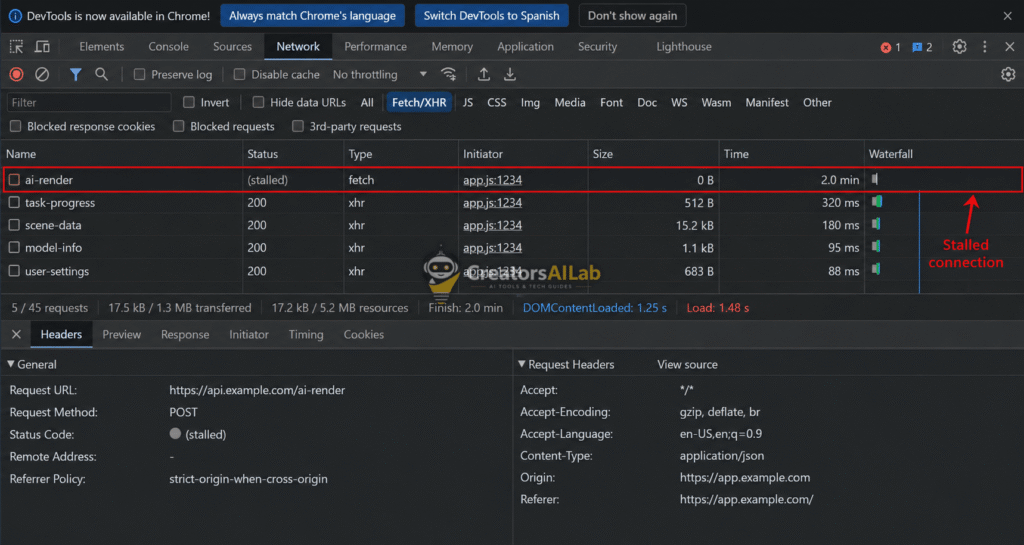
Right-click anywhere on the frozen page. Hit “Inspect”.
Go to the “Network” tab at the top. Look for a red line indicating a failed fetch request or a stalled websocket.
If it’s there, simply toggle your computer’s WiFi off for three seconds, then back on. The socket will force a reconnect attempt. Often, the UI will instantly update to 100% and provide your download link.
If that fails, go to the “Application” tab in DevTools. Under “Local Storage”, find the session key for your generation. Right-click and delete it, then do a soft refresh. The server will read your logged-in state and serve the completed file from its cache.
For more on preserving your paid resources, check out our guide on Best Midjourney alternatives without Discord.
Error 2: The Workflow Breaker – Persistent AI API Error Codes
Automation works wonders until the API completely stops responding. You set up a bulk generation script, walk away, and come back to a disaster.
You’ll suddenly see massive blocks of red text. Usually, it’s a 429 or 409 status code. Your script is dead in the water.
Why LiteSpeed Conflicts with Rank Math
AI API error codes aren’t random glitches. They are strict rate limits enforced by the provider’s servers.
A 429 means you sent too many requests too fast. The server flagged you for spamming. A 409 means a previous request is still processing, and you’re jamming the queue with conflicting commands.
The Diagnostic Matrix Fix
Don’t just guess what went wrong. You need to read the specific header responses.
The API Diagnostic Matrix:
| Error Code | Root Cause | Exact Solution |
| HTTP 429 | Too Many Requests (Rate Limit Hit) | Add a 5-second sleep() function between API calls. |
| HTTP 409 | Conflict (Queue Jammed) | Kill duplicate API keys and clear ghost processes. |
| HTTP 502/503 | Server-Side Overload | Pause script. Wait for the provider’s servers to recover. |
You must build error handling into your workflow. If your script hits a 429, tell it to pause for 60 seconds and retry automatically. Don’t let it crash entirely.
You can read the official server-side definitions for these errors in the Mozilla Developer Network (MDN) HTTP Status Codes documentation.
Error 3: The Traffic Killer – LiteSpeed Rank Math Conflict
You fixed the generation errors. You finally published the article.
But a week later, Google Search Console says your pages aren’t indexing. “Couldn’t fetch sitemap.” What gives?
It’s the classic LiteSpeed Rank Math conflict. Your caching plugin is actively destroying your SEO foundation.
Why LiteSpeed Blocks Rank Math Sitemap
Search engine bots need raw XML data to understand your site structure. Rank Math generates perfectly clean, dynamic XML sitemaps.
LiteSpeed aggressively caches everything to make your site load fast. It accidentally converts the dynamic XML sitemap into a static HTML cached file. When Googlebot tries to read it, it sees a wall of HTML instead of XML links, and it abandons the crawl.
The Exact Exclusion Rules for Sitemap Caching
You have to tell LiteSpeed to ignore Rank Math completely. You cannot cache sitemaps.
Navigate to your LiteSpeed Cache dashboard in WordPress. Click on the “Cache” section, then select the “Excludes” tab.
Paste these exact URIs into the “Do Not Cache URIs” text box:
/(.*)sitemap(.*).xml
/(.*)sitemap.xsl
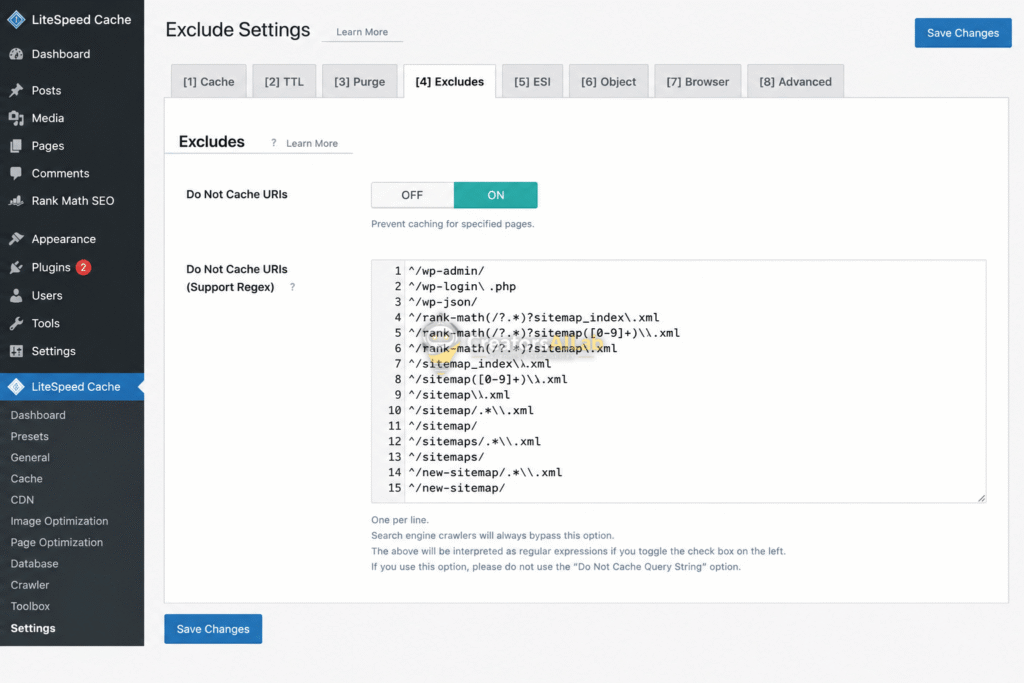
Hit save. Now, go to your LiteSpeed dashboard and click “Purge All”.
Go to Google Search Console and resubmit your sitemap URL. Googlebot will read your sitemap cleanly as raw XML on its next crawl. Your indexing issues are solved.
If your WordPress backend is still dropping connections to your generation tools, read our complete tutorial on how to fix AI and REST API timeout errors.
Securing Your Publishing Pipeline
Stop treating these software errors as random bad luck. They are predictable.
When you eliminate AI publisher tech stack errors, your daily output doubles. You stop wasting hours troubleshooting and start focusing on content.
Keep your browser’s DevTools handy for frozen pages. Monitor your API rate limits carefully to avoid bans. And always exclude your sitemaps from aggressive server caching.
FAQs Related to AI Publisher Tech Stack Errors
1: How do I fix an AI render freeze without losing my credits?
Do not refresh the page, or you will lose your paid credits. Open your browser’s Developer Tools, go to the Network tab, and briefly toggle your WiFi off and on. This forces a background reconnect. It usually updates the frozen UI to 100% instantly.
2: What exactly do AI API error codes 429 and 409 mean?
A 429 error means “Too Many Requests.” Your generation script is running too fast and hit a server rate limit. A 409 error means “Conflict.” This happens when you send a new request while a previous one is still stuck in the processing queue.
3: How do I fix the LiteSpeed Rank Math conflict for sitemaps?
LiteSpeed caches Rank Math’s dynamic XML sitemaps as static HTML files. This completely blocks Google from indexing your site. Go to LiteSpeed Cache settings, open the “Excludes” tab, and add /(.*)sitemap(.*).xml to the “Do Not Cache URIs” list.
4: Will a hard refresh wipe my AI generation history?
Yes. If your generation is currently active and stuck at 99%, a hard refresh will break the session token. Always try the DevTools network reconnect method before you ever consider refreshing the page.
5: Why is Google Search Console ignoring my Rank Math sitemap?
If you use LiteSpeed, Googlebot is likely seeing an HTML cache page instead of your actual XML links. Once you exclude the sitemap from your cache settings and click “Purge All,” resubmit the URL in Search Console. It will index normally on the next crawl.
